# Artiwright documentation
# Introduction
Source: https://artiwright.com/docs/
Artiwright is an open-source toolkit that gives AI agents the tools to **create, edit and check native PowerPoint
and Excel files**. Charts are real Office charts, formulas recalculate, and decks can follow your company template,
so the people who receive the files can keep working on them.
## What your agent gets
Four steps, as tools any model can call:
1. **Build.** Lay out slides with ready-made layouts, native charts and tables, or open an existing deck, workbook or
template and work inside it.
2. **Look.** Draw each page as an image, so the model sees what a person would.
3. **Check.** Find overflowing text, overlapping shapes, low contrast, tiny type, missing fonts and broken formulas,
each pointing at the shape or cell to fix.
4. **Hand over.** Validate the file, check your stated requirements, open it again to be sure, and save it.
Code the agent writes runs in a [sandbox](https://artiwright.com/docs/reference/security/), and Artiwright itself sends your files nowhere: they
go only where your agent sends them.
## Choose how to use it
[How it fits your stack](https://artiwright.com/docs/architecture/) shows what runs where in each setup.
## Start here
- [Prerequisites](https://artiwright.com/docs/prerequisites/): Node.js, Python and what to check first.
- [Quickstart](https://artiwright.com/docs/quickstart/): Your first deck from an AI app in a few minutes.
**Formats:**
Slides (.pptx) and spreadsheets (.xlsx) are available today. Word documents and PDF are planned, through the same
tools.
---
# How it fits your stack
Source: https://artiwright.com/docs/architecture/
Artiwright doesn't replace your agents, your model or your app. It gives your agents tools to make and check
PowerPoint and Excel files (and, for Python frameworks, a ready-made agent that uses them), and hands back the
finished file. There is no Artiwright cloud: it runs where you run it.
Pick your setup to see what runs where:
## The parts
- **Tools.** Your agent calls them over [MCP](https://artiwright.com/docs/reference/mcp-tools/): `artiwright_run` to build with code,
`artiwright_render` to see each page, `artiwright_lint` to check it, `artiwright_finalize` to validate and save, and
`artiwright_open` to start from a file someone sent. The Node.js library is the same engine without MCP.
- **Sandbox.** The code an agent writes runs in a separate process per session, with file access limited to that
session's folder, no network and a time and memory limit. Files someone sends are read and drawn there too, never in
the server process. See [security](https://artiwright.com/docs/reference/security/).
- **Engine.** Lays out slides and sheets, draws them as images, runs the lint rules, validates the Open XML package and
writes the file.
- **Session folder.** A session is one conversation's workspace: the documents between calls, previews, finished files
and a receipt for each finalize. See [sessions and files](https://artiwright.com/docs/reference/sessions/).
Artiwright never calls a model. Your agent talks to its own model provider, as it already does. Apart from the Python
package's one-time install of its JavaScript side ([below](#what-leaves-your-network)), Artiwright makes no network
requests of its own.
## Four ways to set it up
### In an AI app
Claude, Codex, Cursor, VS Code or Antigravity start `npx -y artiwright@latest mcp` as a local MCP server over stdio. The app's
agent plans and calls the tools; finished files are saved into the folder you're working in, and never overwrite a
file that's there. Nothing to deploy. [Set it up](https://artiwright.com/docs/integrations/mcp/).
### In your agent framework
For Google ADK and LangGraph, the Python package starts the MCP server over stdio inside your service and brings its
own Node.js. With ADK you get a ready-made Artiwright agent to add to your router's `sub_agents`; with LangGraph you
get the tools and the instruction for a node. Each conversation gets its own session, so "make the chart a bar chart"
edits the same deck. [Google ADK](https://artiwright.com/docs/integrations/google-adk/) · [LangGraph](https://artiwright.com/docs/integrations/langgraph/).
### As a shared server
One Artiwright for many agents, teams or tenants: the HTTP server, at `/mcp`, behind a bearer token. Any MCP client
in any language can use it. Requests are stateless and each carries its `session`, so any instance can continue any
conversation. Clients send files' contents rather than paths, and finished files are written under
`//outputs/` for your app to serve. For untrusted input, run the
[container image](https://artiwright.com/docs/integrations/docker/) locked down. [Set it up](https://artiwright.com/docs/integrations/http-server/).
### In your own backend
No agent at all: an "export to deck" button or a nightly report calls the Node.js library directly, with the same
layouts, charts, themes and checks. [Set it up](https://artiwright.com/docs/integrations/nodejs/).
## Where it sits among your agents
Most teams that need documents already have agents that check a request, plan, retrieve, analyze and cite. Artiwright
fits in three ways:
```
┌─▶ answer in chat
your app ─▶ router ─▶ … ─┤
└─▶ Artiwright agent ─▶ .pptx / .xlsx ─▶ your app serves the file
```
- **As the last step of a pipeline.** Your agents produce the answer and its citations; the Artiwright agent turns it
into the deck or workbook. See [in your agent pipeline](https://artiwright.com/docs/guides/agent-pipelines/).
- **As a sub-agent.** The router hands it requests for files, and it can call your retrieval agent as a tool for any
figure it needs. See [Google ADK: add it to your multi-agent setup](https://artiwright.com/docs/integrations/google-adk/#add-it-to-your-multi-agent-setup).
- **As tools on an existing agent or node.** Add Artiwright's tools to the agent that writes the final answer. See
[LangGraph: in a multi-agent graph](https://artiwright.com/docs/integrations/langgraph/#in-a-multi-agent-graph).
Each agent can use a different model: a small, fast one is fine for routing, while the agent that builds the file does
best on a capable one. See [choosing a model](https://artiwright.com/docs/guides/choosing-a-model/).
## Choosing a setup
| If you… | Use |
|---|---|
| Want decks and workbooks from the AI app you already use | [An AI app](https://artiwright.com/docs/integrations/mcp/) |
| Build agents in Python with ADK or LangGraph | [Your agent framework](https://artiwright.com/docs/integrations/google-adk/) |
| Run many agents, teams or tenants, or agents in other languages | [A shared server](https://artiwright.com/docs/integrations/http-server/), in [Docker](https://artiwright.com/docs/integrations/docker/) |
| Generate files from your product's data without a model | [Your own backend](https://artiwright.com/docs/integrations/nodejs/) |
## What leaves your network
- **Your agent's calls to its model provider**, as with any tool. The provider sees what the agent sends it, including
rendered pages when the agent looks at them.
- **The Python package's first-run download** of its JavaScript dependencies from npm (or run `artiwright-setup` once
when you build your image).
- **Nothing else.** No telemetry, no usage reports, no account. See [your data](https://artiwright.com/docs/reference/security/#your-data).
---
# Prerequisites
Source: https://artiwright.com/docs/prerequisites/
What you need depends on how you'll use Artiwright. Most setups need **one** of Node.js or Python, not both.
| You want to use it from | You need |
|---|---|
| An AI app over MCP (Claude, Cursor, Codex, Antigravity) | **Node.js 22.13 or newer** (npm comes with it) |
| Your own Node.js or TypeScript code, or the HTTP server | **Node.js 22.13 or newer** |
| Google ADK or LangGraph agents (Python) | **Python 3.10 or newer.** Node.js is *not* needed: the Python package brings its own. |
| Docker | Docker Desktop, or Docker Engine on Linux |
You'll also need the AI app you want to use, or an API key for a model if you build your own agent.
## Check what you have
Open a terminal (on Windows, PowerShell) and run:
**macOS / Linux:**
```bash
node --version # v22.0.0 or newer
npm --version
python3 --version # Python 3.10 or newer
```
**Windows:**
```powershell
node --version # v22.0.0 or newer
npm --version
py --version # Python 3.10 or newer
```
**macOS comes with Python 3.9:**
On a Mac, `python3` is often Apple's built-in Python 3.9. Artiwright needs 3.10 or newer, and pip's error
doesn't say so: it reports that it can't find a dependency (`mcp`). Install a newer Python (below) and use it
for your project's virtual environment.
## Install Node.js
Any release from 22 on works. The current LTS release is a good choice.
**macOS / Linux:**
Download the LTS installer from [nodejs.org](https://nodejs.org/en/download), or use a package manager:
```bash
brew install node # macOS, with Homebrew
nvm install --lts # macOS or Linux, with nvm
```
**Windows:**
Download the LTS installer from [nodejs.org](https://nodejs.org/en/download), or use winget:
```powershell
winget install OpenJS.NodeJS.LTS
```
Open a new terminal afterwards so `node` and `npm` are on your `PATH`.
## Install Python
Any release from 3.10 on works. Use a virtual environment per project.
**macOS / Linux:**
Download an installer from [python.org](https://www.python.org/downloads/), or use a package manager:
```bash
brew install python@3.12 # macOS, with Homebrew
uv python install 3.12 # macOS or Linux, with uv
```
Then create a virtual environment with it:
```bash
python3.12 -m venv .venv
source .venv/bin/activate
python --version # Python 3.12.x
```
**Windows:**
Download an installer from [python.org](https://www.python.org/downloads/), or use winget:
```powershell
winget install Python.Python.3.12
```
Then create a virtual environment with it:
```powershell
py -3.12 -m venv .venv
.venv\Scripts\Activate.ps1
python --version # Python 3.12.x
```
## Network
The first install downloads Artiwright's dependencies from npm (and, for Python, from PyPI and then npm on first
use). After that the Python package and an installed npm package work offline.
AI apps that start Artiwright with `npx` are different: `npx` asks npm for the latest version every time the app
starts it. Without a connection, the server fails to start after about a minute. To work offline, install it once
and use the `artiwright` command instead of `npx -y artiwright@latest`:
```bash
npm install -g artiwright
```
Behind a proxy, set your usual `HTTPS_PROXY` for npm and pip.
## Next
1. [Install Artiwright](https://artiwright.com/docs/installation/) the way that fits your setup.
2. Follow the [Quickstart](https://artiwright.com/docs/quickstart/) for your first deck.
---
# Installation
Source: https://artiwright.com/docs/installation/
Artiwright comes three ways. They are the same engine; pick the one that matches how your agent runs. Check the
[prerequisites](https://artiwright.com/docs/prerequisites/) first.
**npm:**
For AI apps over MCP, Node.js and TypeScript code, and the HTTP server.
**Without installing**, for MCP clients: they start it on demand with `npx`.
```bash
npx -y artiwright@latest --help
```
`@latest` makes `npx` check for a new release each time it starts. Without it, `npx` keeps running the version
it downloaded first. To stay on one version, name it instead: `artiwright@0.13.17`.
**In a project**, to call it from your own code:
```bash
npm install artiwright
```
The package contains the engine, fonts and the command-line tool `artiwright`, including the MCP server
(`artiwright mcp`).
**pip:**
For Google ADK and LangGraph agents. Install with the extra for your framework:
```bash
pip install "artiwright[adk]" # Google ADK
pip install "artiwright[langgraph]" # LangGraph
```
The package includes Node.js, so you don't need to install it. On first use it downloads its JavaScript
dependencies into `~/.cache/artiwright` (set `ARTIWRIGHT_HOME` to change that). To do it ahead of time, for
example while building an image:
```bash
artiwright-setup
```
**Docker:**
The MCP server as an HTTP service, with sessions kept in a volume:
```bash
docker run -d -p 8765:8765 \
-e ARTIWRIGHT_MCP_TOKEN=change-me \
-v artiwright-data:/data \
ghcr.io/bvenu17/artiwright-mcp
```
See [Docker](https://artiwright.com/docs/integrations/docker/) for the images and their options.
## Check it works
**npm:**
```bash
npx -y artiwright@latest version
```
It prints the versions of Artiwright and Node.js. Artiwright's engine ships inside it, with the same version.
**pip:**
```bash
python -c "import artiwright; print(artiwright.__version__)"
```
**Docker:**
```bash
docker ps --filter ancestor=ghcr.io/bvenu17/artiwright-mcp
```
The container should be listed as running, with port 8765 published.
On Windows, if `npx` isn't found, open a new terminal after installing Node.js so it's on your `PATH`.
## Next
- [Quickstart](https://artiwright.com/docs/quickstart/): your first deck from an AI app.
- [Google ADK](https://artiwright.com/docs/integrations/google-adk/) or [LangGraph](https://artiwright.com/docs/integrations/langgraph/): add it to your agents.
---
# Quickstart
Source: https://artiwright.com/docs/quickstart/
This is the fastest way to see Artiwright work: add it to an AI app as an MCP server, then ask for a deck. You
need **Node.js 22.13 or newer** ([prerequisites](https://artiwright.com/docs/prerequisites/)) and one of the apps below.
**Building your own agent instead?**
Start with [Google ADK](https://artiwright.com/docs/integrations/google-adk/) or [LangGraph](https://artiwright.com/docs/integrations/langgraph/), or call it
from [Node.js](https://artiwright.com/docs/integrations/nodejs/).
1. **Add Artiwright to your app.**
**Claude Code:**
```bash
claude mcp add --transport stdio --scope user artiwright -- npx -y artiwright@latest mcp
```
`--scope user` makes it available in every project. Leave it out to add it to the current project only.
**Claude Desktop:**
In Claude Desktop, open **Settings → Developer → Edit Config**, and add Artiwright under `mcpServers`:
```json
{
"mcpServers": {
"artiwright": {
"command": "npx",
"args": ["-y", "artiwright@latest", "mcp"]
}
}
}
```
Then quit Claude Desktop completely and open it again.
**Cursor:**
Add Artiwright to `~/.cursor/mcp.json` (every project) or `.cursor/mcp.json` (this project):
```json
{
"mcpServers": {
"artiwright": {
"type": "stdio",
"command": "npx",
"args": ["-y", "artiwright@latest", "mcp"]
}
}
}
```
**Codex:**
```bash
codex mcp add artiwright -- npx -y artiwright@latest mcp
```
This writes to `~/.codex/config.toml`, which the Codex CLI, IDE extension and app share.
**Antigravity:**
Add Artiwright to `~/.gemini/config/mcp_config.json`, which the Antigravity IDE and CLI share:
```json
{
"mcpServers": {
"artiwright": {
"command": "npx",
"args": ["-y", "artiwright@latest", "mcp"]
}
}
}
```
Using a different app? See [MCP clients](https://artiwright.com/docs/integrations/mcp/).
2. **Check that it's connected.**
**Claude Code:** Run `claude mcp list`; Artiwright should show as connected. Inside a session, `/mcp` lists it too.
**Claude Desktop:** In a chat, open the **+** menu, then **Connectors**: Artiwright should be listed with its tools.
**Cursor:** Open **Customize** in the sidebar and turn Artiwright's toggle on. Its tools appear under **Available Tools**.
**Codex:** Run `codex mcp list`, or type `/mcp` in a Codex session.
**Antigravity:** In **Settings → Customizations → Installed MCP Servers**, choose **Refresh**; in the CLI (`agy`), type `/mcp`.
You should see twelve tools whose names start with `artiwright_`.
3. **Ask for a deck.** Start a new conversation so the app loads Artiwright's tools:
**Claude Code:** In a terminal, `cd` to any folder and run `claude`.
**Claude Desktop:** Start a new chat.
**Cursor:** Open a new chat in Agent mode.
**Codex:** Run `codex` in a terminal, or start a new task in the Codex app.
**Antigravity:** Start a new conversation with the agent, or run `agy`.
Then ask in plain words. Try:
> Make a four-slide PowerPoint review of Q3 for our leadership team: revenue up 18% to $4.2M, new customers from
> 140 to 182, churn down to 2.1%. Add a column chart of revenue by month (Jul $1.3M, Aug $1.4M, Sep $1.5M) and a
> short plan for Q4. Use the spruce theme.
Some apps also have their own way to make slides. Asking for a PowerPoint file, or saying "with Artiwright", makes
the agent use Artiwright's tools.
The agent builds the deck, looks at each slide, fixes anything that overflows or overlaps, and then saves it.
Your app asks before it runs each tool the first time; allow them. The first request takes a little longer
while `npx` downloads Artiwright.
4. **Open the file.** The agent tells you where it saved the deck: in the folder you're working in (your project
in Claude Code, Codex or Cursor), or in `Documents/Artiwright` in your home folder for apps that don't work in a
folder, like Claude Desktop's chat. Ask for another place ("save it on my Desktop") and it saves it there. Open
it in PowerPoint, click the chart and choose **Edit Data**: it's a real chart, with its numbers in a sheet.
## Try next
- **A workbook:** "Build a 12-month budget workbook with formulas for the totals and a chart of spend by month."
- **Your own file:** "Open /full/path/to/q3.pptx and add a slide summarising the pipeline." Artiwright edits a copy
and keeps everything it doesn't change.
- **Your template:** "Use /full/path/to/brand.potx and make a two-slide update." See
[themes and templates](https://artiwright.com/docs/guides/themes/).
## If it doesn't work
The app doesn't show Artiwright's tools
Run `npx -y artiwright@latest version` in a terminal. If that fails, Node.js isn't installed or is older than 22.13 (see
[prerequisites](https://artiwright.com/docs/prerequisites/)). If it works, restart the app completely, and check that the JSON in its
config file is valid.
The first request times out
The first start downloads Artiwright, which can take longer than some apps wait. Run `npx -y artiwright@latest version`
once in a terminal to download it ahead of time, then try again.
You have more than one Node.js installed (nvm, fnm, Volta)
The app may start an older Node.js than your terminal does, and Artiwright then fails or times out. Make Node.js 22
or newer your default (with nvm: `nvm alias default 24`), then restart the app. If it still starts the old one, give
the server a `PATH` that starts with your Node.js folder (`nvm which 24` shows it, without the final `/node`):
```json
"env": { "PATH": "/Users/you/.nvm/versions/node/v24.21.0/bin:/usr/bin:/bin" }
```
The file isn't where I expected
The agent's last message gives the full path. Finished files go to the folder the app works in, or to
`Documents/Artiwright` when the app starts Artiwright without one. To keep everything in one folder of your choice,
add `--root` and a full path after `mcp`: finished files are then under `//outputs/`
([server options](https://artiwright.com/docs/reference/server-options/)).
## Next
- [MCP clients](https://artiwright.com/docs/integrations/mcp/): Setup details for each app, and remote servers.
- [Google ADK](https://artiwright.com/docs/integrations/google-adk/): Add an Artiwright agent to your own agents.
---
# Build a full app
Source: https://artiwright.com/docs/tutorial/
In this tutorial you run a complete app: a web app, ADK's API, and a team of Google ADK agents working on a
company's data. Ask a question and the analyst answers with the figures. Ask for the quarterly business review and
you get a native PowerPoint deck and the Excel workbook behind it, checked so that every number on a slide is in the
workbook, in two to three minutes. Then you'll see how the pieces fit, so you can add Artiwright to your own agents the
same way.
**Time:** about 15 minutes. **You need:** Git, Python 3.11 or newer with [uv](https://docs.astral.sh/uv/), Node.js
22.13 or newer for the web app, and an OpenAI API key, a Gemini API key or a Google Cloud project with Vertex AI
([prerequisites](https://artiwright.com/docs/prerequisites/)). No key yet? The app also runs with a scripted model.
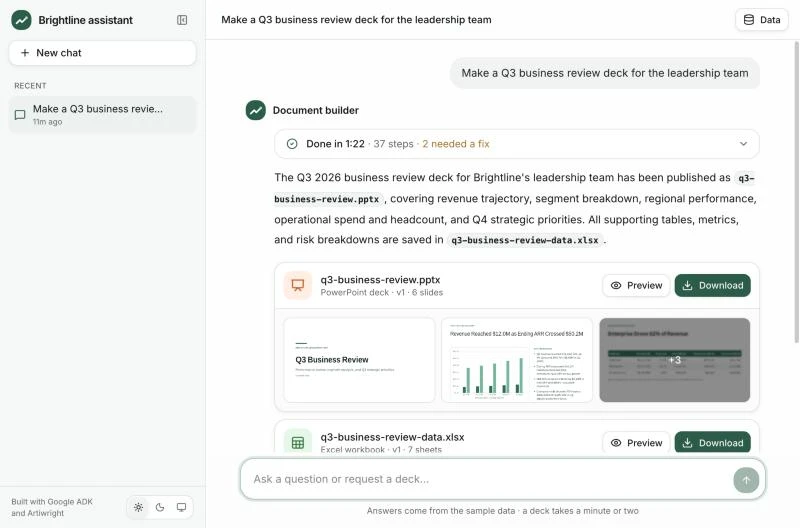
## What you'll build
The app is the assistant of Brightline, a made-up software company. Its data is what its systems would export:
24 months of revenue by segment and region, 186 customer accounts, 260 sales opportunities and monthly headcount,
as CSV files, plus the leadership team's notes: the Q3 board update, the Q4 plan, customer call notes and the
competitive landscape.
- The **assistant** reads each message and hands it to the right agent.
- The **analyst** answers questions with SQL over the data and a search of the notes, and says where each figure
came from.
- The **report builder** runs two agents in order. The **brief writer** saves every table the document needs
straight from SQL and writes a short brief. the **Artiwright agent** loads those tables into a workbook,
builds the deck from them, looks at every slide, and finalizes both files.
- The **editor** is another Artiwright agent: it changes a deck made earlier in the chat and saves the next version.
## Run it
1. **Get the code** and open the example:
```bash
git clone https://github.com/bvenu17/artiwright.git
cd artiwright/examples/business-review-app
```
- app/
- agent.py the agent team
- prompts.py the agents' instructions
- tools.py SQL over the data, the notes search, save_table
- fast_api_app.py ADK's API, plus downloads and previews
- demo.py the scripted model for runs without a key
- frontend/ the web app (React, Vite, Tailwind, shadcn/ui)
- data/ the CSV exports and notes
- tests/ the whole app, end to end, without a key
- Makefile
- .env.example
2. **Install** the Python and web app packages:
**macOS and Linux:**
```bash
make install
```
**Windows:**
```powershell
uv sync
npm --prefix frontend ci
```
This installs Artiwright with Google ADK. Artiwright brings its own runtime, so the API needs nothing else.
3. **Choose a model.** Copy the example settings into `.env`:
```bash
cp .env.example .env
```
**OpenAI API key:**
```bash title=".env"
OPENAI_API_KEY=your-key
```
Get a key from the [OpenAI platform](https://platform.openai.com/api-keys). The app uses `openai/gpt-6.1-sol`.
**Gemini API key:**
```bash title=".env"
MODEL_NAME=gemini-3.8-flash
GOOGLE_API_KEY=your-key
```
Get a key from [Google AI Studio](https://aistudio.google.com/apikey).
**Vertex AI:**
```bash title=".env"
MODEL_NAME=gemini-3.8-flash
GOOGLE_GENAI_USE_VERTEXAI=TRUE
GOOGLE_CLOUD_PROJECT=your-project-id
GOOGLE_CLOUD_LOCATION=global
```
Sign in first with `gcloud auth application-default login`.
**No key:**
```bash title=".env"
MODEL_NAME=demo
```
A scripted model stands in for the real one. The tools, Artiwright and the API all run for real; a deck takes seconds.
The app uses `openai/gpt-6.1-sol` unless you set `MODEL_NAME`; other providers work through LiteLLM (see
[choosing a model](https://artiwright.com/docs/guides/choosing-a-model/)).
4. **Start it:**
**macOS and Linux:**
```bash
make dev
```
**Windows:**
In two terminals:
```powershell
uv run uvicorn app.fast_api_app:app --port 8000
```
```powershell
npm --prefix frontend run dev
```
5. **Open [http://localhost:5173](http://localhost:5173)** and try the suggestions:
- "Which renewals are at risk before the end of the year, and why?" The analyst answers from the CRM and the
call notes, with a table and where the figures came from.
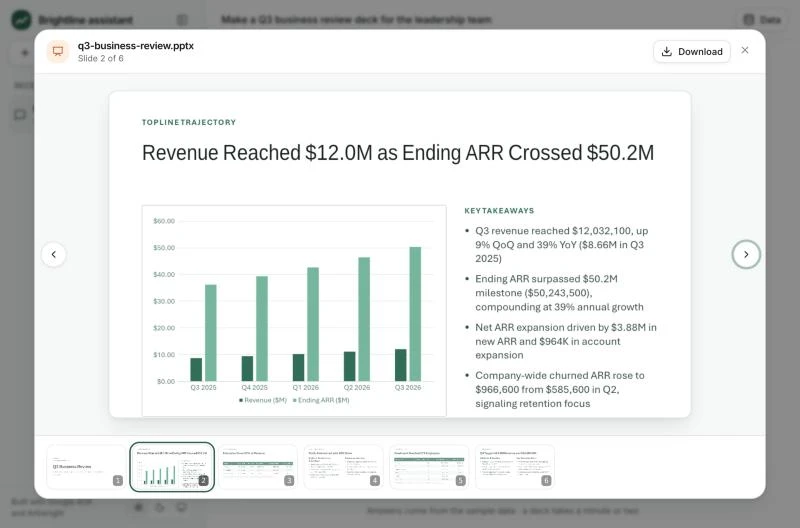
- "Make a Q3 business review deck for the leadership team." The timeline shows each step as it happens: the
tables the brief writer saves, loading them into the workbook, building and checking the slides. Then the deck
and the workbook appear with previews and a download.
Open the deck in PowerPoint and click a chart: its numbers are in an editable sheet. Ask "make slide 3 a bar
chart" and the editor saves a new version.
## How it works
### The agent team
Everything about the agents is in `app/agent.py`. The analyst and the brief writer are ordinary ADK agents with
plain Python tools. The Artiwright agent and the editor come from `artiwright_agent()`, with the app's
theme and instructions:
```python title="app/agent.py (simplified)"
report_builder = SequentialAgent(
name="report_builder",
description="Makes PowerPoint decks and Excel workbooks from Brightline's data: a brief, then the files.",
sub_agents=[
analyst("brief_writer", prompts.BRIEF_WRITER, "Gathers the figures and facts for a document.",
[save_table, query_data, search_notes]),
documents("artiwright_agent", "Builds the deck and its workbook from the brief, checks and saves them.",
prompts.DOCUMENTS),
],
)
root_agent = LlmAgent(
name="assistant",
model=MODEL,
instruction=prompts.ASSISTANT,
sub_agents=[
analyst("analyst", prompts.ANALYST, "Answers questions from Brightline's data and notes."),
report_builder,
documents("editor", "Changes a deck or workbook already made in this chat.", prompts.EDITOR),
],
)
```
`artiwright_agent()` brings Artiwright's tools, the guide that teaches the model to build, look, check and save,
and callbacks that save each finished file as an ADK artifact. Each agent hands control back when it's done, so
the assistant routes every new message.
### Numbers that come from the data
The brief writer doesn't copy figures into the brief. It calls `save_table` for every chart and table the
document needs, and for the single figures in a "Key figures" table:
```python title="app/tools.py"
def save_table(name: str, sql: str, tool_context: ToolContext) -> dict[str, Any]:
"""Runs one read-only SQL query and saves the result as a table for the document: the document
agent loads it into the workbook by its path, so the deck's figures come straight from the query."""
```
The Artiwright agent imports each table into the workbook with `artiwright_import`, builds the deck from them, and
finalizes both. [Finalize](https://artiwright.com/docs/guides/check-and-finalize/#numbers-from-the-workbook) checks the deck's numbers
against the workbook, so a slide that quotes a figure the data doesn't hold isn't saved: the agent fixes it first.
### The server
`app/fast_api_app.py` is ADK's own API server, from `get_fast_api_app()`: sessions, `/run_sse` for streaming a
turn, and artifacts, kept on disk so chats and files survive a restart. The app adds three routes: the datasets,
file downloads, and page previews that Artiwright renders.
```python title="app/fast_api_app.py (simplified)"
app = get_fast_api_app(agents_dir=str(ROOT), web=False, allow_origins=["http://localhost:5173"])
```
### The web app
`frontend/` is React, Vite, Tailwind and shadcn/ui, the same stack as Google's ADK samples. It sends each message
to `/run_sse` and turns the stream of ADK events into the timeline: a plain-language line per tool call, the agent
that made it, and the time. When a file arrives it shows a card with previews and a download.
## Make it yours
- **Your data:** replace the queries and search in `app/tools.py` with calls to your warehouse, semantic layer or
vector store. Keep `save_table`, so finalize can check the deck against the data.
- **Your brand:** set `ARTIWRIGHT_THEME` in `.env` to a preset (`ledger`, `studio`, `coast`) or the path of your
company template (`.potx`). See [themes and templates](https://artiwright.com/docs/guides/themes/).
- **Your documents:** change the instructions in `app/prompts.py` for board decks, pipeline reviews or monthly
reports.
- **Deploy:** the Dockerfile builds the web app and serves everything on port 8080, ready for Cloud Run. For
production, point ADK at a database session service and a Cloud Storage artifact service.
## Troubleshooting
The page says it can't reach the server
The API isn't running on port 8000, or it stopped with an error. Check the terminal where `make dev` runs; a
missing model setting shows there first.
The first deck takes longer
The first request after starting the server waits while Artiwright starts. Later decks start right away.
A step timed out or failed
Retry from the page. `MODEL_TIMEOUT` in `.env` sets how long a model call may take (120 seconds by default).
## Next
- [Google ADK](https://artiwright.com/docs/integrations/google-adk/): Every option of the Artiwright agent.
- [Agent pipelines](https://artiwright.com/docs/guides/agent-pipelines/): Hand your agents' answer to Artiwright.
- [Check and finalize](https://artiwright.com/docs/guides/check-and-finalize/): What the agent checks before saving.
---
# Set it up with a coding agent
Source: https://artiwright.com/docs/coding-agents/
Your coding agent can do the setup. Give it three things: the docs to read, Artiwright's tools to try, and the skills
that teach the work loop. Then paste one prompt.
## The prompt
Paste this into Claude Code, Codex or Cursor, in the project you want to add Artiwright to:
```text wrap
Add Artiwright to this project. First read https://artiwright.com/llms.txt and pick the guide that fits this
codebase: Google ADK or LangGraph for a Python agent, the Node.js library for a TypeScript backend, or the HTTP
server for agents in other languages. Follow that guide exactly. Then make a two-slide test deck with it, check it
with lint, and tell me where the finished file was saved.
```
The agent finds the right guide from the index, installs the package, wires it in and proves it works with a real
file. For an agent in a Python service, the guides it lands on are [Google ADK](https://artiwright.com/docs/integrations/google-adk/) and
[LangGraph](https://artiwright.com/docs/integrations/langgraph/); for your own backend, [Node.js](https://artiwright.com/docs/integrations/nodejs/).
## The docs, in a form agents read
- **[/llms.txt](https://artiwright.com/llms.txt):** an index of every docs page with a one-line summary ([llmstxt.org](https://llmstxt.org)).
- **[/llms-full.txt](https://artiwright.com/llms-full.txt):** all the docs in one file, to load into context.
- **Any page as Markdown:** add `.md` to its address, for example [/docs/quickstart.md](https://artiwright.com/docs/quickstart.md). The
**Copy for LLM** button at the top of each page copies it, or opens it in ChatGPT or Claude.
## The tools, so it can try what it builds
Add the MCP server to the coding agent itself, so it can make and check a file while it works:
```bash
claude mcp add --transport stdio --scope user artiwright -- npx -y artiwright@latest mcp
```
```bash
codex mcp add artiwright -- npx -y artiwright@latest mcp
```
For Cursor, VS Code and other apps, see [MCP clients](https://artiwright.com/docs/integrations/mcp/). In Claude Code, the
[plugin](https://artiwright.com/docs/integrations/claude/) adds the server and the skills together.
## The skills, so it knows the work loop
Artiwright's guides to building decks and workbooks come as two [Agent Skills](https://agentskills.io),
`artiwright-presentations` and `artiwright-spreadsheets`. Copy them into your agent's skills folder:
```bash
npx -y artiwright@latest skills install ~/.claude/skills
```
For Codex, use `~/.codex/skills`. A skill is only instructions; the MCP server still does the building. See
[prompts and skills](https://artiwright.com/docs/integrations/mcp/#prompts-and-skills).
The prompt above asks for lint and a real file on purpose: an agent that has seen its own slide render and pass the
checks has proved the setup, not just installed it.
---
# Google ADK
Source: https://artiwright.com/docs/integrations/google-adk/
The `artiwright` Python package gives Google ADK a **Artiwright agent**: an `LlmAgent` that builds decks or workbooks
with Artiwright, checks them, and saves the finished files as ADK artifacts. Add it to your multi-agent setup next to
your other agents, or give Artiwright's tools to an agent you configure yourself.
## Prerequisites
- **Python 3.10 or newer** ([prerequisites](https://artiwright.com/docs/prerequisites/)). Node.js isn't needed: the package brings its own.
- **A model API key:** a Gemini API key from Google AI Studio, or an OpenAI API key.
## Install
**Gemini:**
```bash
pip install "artiwright[adk]"
```
**OpenAI:**
ADK reaches OpenAI models through LiteLLM:
```bash
pip install "artiwright[adk]" "litellm>=1.84"
```
On first use the package downloads its JavaScript dependencies into `~/.cache/artiwright`. To do it ahead of time
(for example in a container build), run `artiwright-setup`.
## Set your model
**Gemini:**
Put your key in a `.env` file next to your agent (ADK reads it):
```bash
GOOGLE_API_KEY=your-gemini-api-key
```
```python
MODEL = "gemini-3.8-flash"
```
**OpenAI:**
Put your key in a `.env` file next to your agent:
```bash
OPENAI_API_KEY=your-openai-api-key
```
```python
from google.adk.models.lite_llm import LiteLlm
MODEL = LiteLlm(model="openai/gpt-6-luna")
```
Any model your ADK setup supports works; these are inexpensive defaults.
## Minimal example
1. **Create an agent folder** in the layout ADK's tools expect:
```text
decks/
├── __init__.py
├── agent.py
└── .env
```
```python
# decks/__init__.py
from . import agent
```
```python
# decks/agent.py
from artiwright.adk import artiwright_agent
MODEL = "gemini-3.8-flash" # or LiteLlm(model="openai/gpt-6-luna")
root_agent = artiwright_agent(
root="./artiwright-sessions", # Artiwright keeps each session's documents here
model=MODEL,
)
```
2. **Run it** with ADK's web UI, from the folder that contains `decks/`:
```bash
adk web
```
Open the URL it prints, choose `decks`, and ask:
> Make a three-slide summary of Q3: revenue up 18% to $4.2M, churn down to 2.1%, and a plan for Q4.
3. **Find the file.** The finished deck is saved as an ADK artifact (see the **Artifacts** tab), and under
`./artiwright-sessions//outputs/`.
## Add it to your multi-agent setup
The Artiwright agent works best next to agents that know your facts. Give it a tool that answers questions, such as
your retrieval agent wrapped in `AgentTool`, and let a router hand it the requests for files:
```python
from google.adk.agents import LlmAgent
from google.adk.tools.agent_tool import AgentTool
from artiwright.adk import artiwright_agent
knowledge = LlmAgent(
name="knowledge",
model=MODEL,
instruction="Answer questions from the company knowledge base. Quote numbers exactly.",
tools=[search_knowledge_base], # your own retrieval tool
)
documents = artiwright_agent(
root="/srv/artiwright-sessions",
model=MODEL,
tools=[AgentTool(agent=knowledge)], # the Artiwright agent can ask for facts
instruction="Audience: our leadership team. Keep decks under 12 slides.",
theme="ledger", # or a template path, or {"brand": "#0B5FFF"}
)
root_agent = LlmAgent(
name="router",
model=MODEL,
instruction="Answer questions with the knowledge agent. Hand requests for decks or workbooks to artiwright_agent.",
sub_agents=[knowledge, documents],
)
```
The [full app tutorial](https://artiwright.com/docs/tutorial/) builds this into a working web app with a knowledge base of text files.
## What the Artiwright agent does
- **Tools:** Artiwright's MCP tools, started over stdio, with sessions under `root`.
- **Instructions:** the full working loop (plan, build with layouts, render, lint, fix, finalize), plus anything
you add in `instruction`. Add the audience and house style there, not rules that shorten the loop: see
[instructions that help, and ones that hurt](https://artiwright.com/docs/guides/choosing-a-model/#instructions-that-help-and-ones-that-hurt).
- **Sessions:** each ADK session gets its own Artiwright session, so follow-up turns ("make the chart a bar chart")
edit the same deck.
- **Artifacts:** a successful finalize saves the file as an ADK artifact, which your app serves like any other.
- **Images:** rendered slides reach the model as images once, then leave the history, and older tool calls are sent
in short form, a few at a time so the model provider's prompt cache keeps working. That keeps a long deck's input
cost down.
## Workbooks
For an agent that builds Excel workbooks, use the spreadsheets skill:
```python
sheets = artiwright_agent(root="/srv/artiwright-sessions", model=MODEL, name="workbook_agent", skill="spreadsheets")
```
## Files your users attach
To let users attach a deck, workbook or template ("edit this", "use our template"), add ADK's
`SaveFilesAsArtifactsPlugin` to your runner so uploads become artifacts. The Artiwright agent then opens an attachment
by its file name; Artiwright edits a copy and keeps everything it doesn't change.
## Options
`artiwright_agent(...)` takes:
| Option | Default | What it does |
|---|---|---|
| `root` | required | Folder for sessions and finished files |
| `model` | required | The model, as an ADK model string or object |
| `name` | `"artiwright_agent"` | The agent's name |
| `description` | builds decks (or workbooks, with the spreadsheets skill) | What the router reads to decide when to hand over |
| `instruction` | `""` | Extra guidance, added to the working guide: audience, house style, length. See [what helps and what hurts](https://artiwright.com/docs/guides/choosing-a-model/#instructions-that-help-and-ones-that-hurt) |
| `tools` | `None` | Your own tools, for example an `AgentTool` for facts |
| `theme` | `None` | Theme for new files: preset name, template path, or `{"brand": "#…"}` |
| `skill` | `"presentations"` | `"spreadsheets"` for workbooks |
| `full_skill` | `True` | The full working guide as instructions; `False` for a short one |
| `sandbox` | `True` | Run the agent's code in Artiwright's [sandbox](https://artiwright.com/docs/reference/security/) |
## Your own agent
To configure an agent yourself, use the pieces `artiwright_agent` is made of:
```python
from artiwright.adk import toolset, before_tool, save_outputs, prepare_request, INSTRUCTION
agent = LlmAgent(
name="my_agent",
model=MODEL,
instruction=INSTRUCTION,
tools=[toolset("/srv/artiwright-sessions", theme="spruce")],
before_tool_callback=before_tool, # sessions and attachments
after_tool_callback=save_outputs, # finished files as artifacts
before_model_callback=prepare_request, # images and a shorter history
)
```
## Troubleshooting
pip says it can't find a version of `mcp`
Your Python is older than 3.10, often macOS's built-in 3.9. Create the virtual environment with a newer Python
([prerequisites](https://artiwright.com/docs/prerequisites/)).
The first request is slow or times out
The first use downloads Artiwright's JavaScript dependencies. Run `artiwright-setup` once beforehand. You can also
give the tools longer: `toolset(root, timeout=300)`.
Windows: a UnicodeDecodeError with OpenAI models
Set `PYTHONUTF8=1` in your environment, as LiteLLM's documentation advises.
## Next
- [Themes and templates](https://artiwright.com/docs/guides/themes/): Your brand on every file.
- [MCP tools](https://artiwright.com/docs/reference/mcp-tools/): What each tool does and takes.
---
# LangGraph
Source: https://artiwright.com/docs/integrations/langgraph/
The `artiwright` Python package gives LangGraph agents Artiwright's tools as LangChain tools, through LangChain's MCP
adapters. Each LangGraph thread gets its own Artiwright session, so follow-up messages edit the same deck.
## Prerequisites
- **Python 3.10 or newer** ([prerequisites](https://artiwright.com/docs/prerequisites/)). Node.js isn't needed: the package brings its own.
- **A chat model** for LangChain, with its API key (for example `OPENAI_API_KEY` or `GOOGLE_API_KEY`).
## Install
```bash
pip install "artiwright[langgraph]"
```
Add the LangChain package for your model, for example `langchain-openai` or `langchain-google-genai`. On first use
Artiwright downloads its JavaScript dependencies into `~/.cache/artiwright`; run `artiwright-setup` to do it ahead of
time.
## Minimal example
1. **Create the agent** with Artiwright's tools:
```python
# agent.py
import asyncio
from langgraph.prebuilt import create_react_agent
from artiwright.langgraph import INSTRUCTION, agent_tools, compact_messages, get_tools
async def main():
tools = agent_tools(await get_tools(root="./artiwright-sessions", session="demo"))
agent = create_react_agent(
"openai:gpt-6-luna", # or "google_genai:gemini-3.8-flash"
tools,
prompt=INSTRUCTION,
pre_model_hook=compact_messages,
)
result = await agent.ainvoke(
{"messages": [("user", "Make a three-slide summary of Q3: revenue up 18% to $4.2M, and a plan for Q4.")]},
{"recursion_limit": 150},
)
print(result["messages"][-1].content)
asyncio.run(main())
```
2. **Run it:**
```bash
python agent.py
```
3. **Find the file** under `./artiwright-sessions/demo/outputs/`. The agent's last message names it.
## How it fits together
- **`get_tools(root, session=...)`** starts Artiwright's MCP server over stdio and returns its tools. Use the
thread id as `session` so every turn in a thread works on the same documents.
- **`agent_tools(tools)`** keeps the tools an agent that writes code needs, and leaves out `artiwright_apply` (for
clients that can't run code), so its schema isn't sent with every request.
- **`INSTRUCTION`** teaches the working loop: plan, build, render, lint, fix, finalize.
- **`compact_messages`** is a `pre_model_hook`: it sends older tool calls and results in short form, a few at a time
so the model provider's prompt cache keeps working. Every model call resends the conversation, so this keeps a long
deck's cost down; the graph state still keeps every message.
- **`recursion_limit`**: a deck can take a few dozen tool calls, and LangGraph counts about three steps per call.
Allow enough (150 is a good start); "need more steps" means the limit was hit.
## In a multi-agent graph
Make the Artiwright agent one node of your graph and give it facts from your other agents, for example by passing a
retrieval tool alongside Artiwright's:
```python
documents = create_react_agent(
model,
[*agent_tools(await get_tools(root="/srv/artiwright-sessions", session=thread_id)), search_knowledge_base],
prompt=INSTRUCTION + "\nUse search_knowledge_base for every number you put on a slide.",
pre_model_hook=compact_messages,
name="artiwright_agent",
)
```
Add to `INSTRUCTION` rather than replacing it, and add what the agent can't know (audience, house style, where the
facts are), not rules that shorten its build, look, check, fix loop: see
[instructions that help, and ones that hurt](https://artiwright.com/docs/guides/choosing-a-model/#instructions-that-help-and-ones-that-hurt).
## Options
`get_tools(...)` takes:
| Option | Default | What it does |
|---|---|---|
| `root` | required | Folder for sessions and finished files |
| `session` | `None` (`"default"`) | The Artiwright session; use the thread id |
| `theme` | `None` | Theme for new files: preset name, template path, or `{"brand": "#…"}` |
| `sandbox` | `True` | Run the agent's code in Artiwright's [sandbox](https://artiwright.com/docs/reference/security/) |
`connection(...)` takes the same options and returns the stdio connection, for your own `MultiServerMCPClient`.
## Troubleshooting
pip says it can't find a version of `mcp`
Your Python is older than 3.10, often macOS's built-in 3.9. Create the virtual environment with a newer Python
([prerequisites](https://artiwright.com/docs/prerequisites/)).
Dependency conflict on `mcp`
LangChain's MCP adapters 0.3 need `mcp` below 2.0. Artiwright works with either, so let pip pick a version that
satisfies the adapters.
## Next
- [Themes and templates](https://artiwright.com/docs/guides/themes/): Your brand on every file.
- [MCP tools](https://artiwright.com/docs/reference/mcp-tools/): What each tool does and takes.
---
# MCP clients
Source: https://artiwright.com/docs/integrations/mcp/
Artiwright includes an MCP server. Add it to an AI app and the app's agent gets Artiwright's tools: it can build,
look at, check and save decks and workbooks in the conversation, with no code on your side.
## Set up your app
- [Claude](https://artiwright.com/docs/integrations/claude/): Claude Desktop and Claude Code.
- [Cursor](https://artiwright.com/docs/integrations/cursor/): The Cursor editor.
- [Codex](https://artiwright.com/docs/integrations/codex/): Codex CLI, IDE extension and app.
- [Antigravity](https://artiwright.com/docs/integrations/antigravity/): The Antigravity IDE and CLI.
**One click:** [Add to Cursor](cursor://anysphere.cursor-deeplink/mcp/install?name=artiwright&config=eyJjb21tYW5kIjoibnB4IiwiYXJncyI6WyIteSIsImFydGl3cmlnaHRAbGF0ZXN0IiwibWNwIl19) or [Add to VS Code](vscode:mcp/install?%7B%22name%22%3A%22artiwright%22%2C%22type%22%3A%22stdio%22%2C%22command%22%3A%22npx%22%2C%22args%22%3A%5B%22-y%22%2C%22artiwright%40latest%22%2C%22mcp%22%5D%7D). Each opens the editor and asks you
to confirm.
## The standard config
Most apps that support MCP take a server in this shape, under a key such as `mcpServers`:
```json
{
"mcpServers": {
"artiwright": {
"command": "npx",
"args": ["-y", "artiwright@latest", "mcp"]
}
}
}
```
- `npx -y artiwright@latest mcp` downloads Artiwright on first use and starts its MCP server. The app starts and stops it.
- **Finished files** are saved in the folder the app works in (your project), or in `Documents/Artiwright` in your
home folder when the app starts the server without one. The agent can also save where you ask.
- **Each conversation** keeps its own documents, so two conversations open at once never edit the same deck. The
work in progress (change history, previews) lives in your system's folder for app data.
It needs **Node.js 22.13 or newer** ([prerequisites](https://artiwright.com/docs/prerequisites/)).
## Options
Add these after `mcp` in the arguments:
| Option | What it does |
|---|---|
| `--root ` | Keeps everything in one folder: each conversation's work, and finished files under `/outputs/`. Without it, finished files go where you work. |
| `--session ` | A fixed name for the conversation's work, instead of one per conversation. |
| `--theme ` | The theme new documents start in: a preset (`spruce`, `ledger`, `studio`, `coast`, `classic`), a template file (`.potx`), or a brand color as JSON (`'{"brand":"#0B5FFF"}'`). See [themes](https://artiwright.com/docs/guides/themes/). |
| `--http` | Serve over HTTP instead of stdio, for a [remote server](#run-it-as-a-remote-server). |
All options are in the [server options](https://artiwright.com/docs/reference/server-options/) reference.
## What the agent can do
The server gives the agent twelve tools, from opening a file to saving the finished one:
| Tool | In short |
|---|---|
| `artiwright_open` | Open an existing deck, workbook or template |
| `artiwright_import` | Load a CSV or table export into a workbook |
| `artiwright_run` | Build or change a document with code |
| `artiwright_apply` | The same as a list of JSON operations |
| `artiwright_inspect` | Read what's on a slide or sheet |
| `artiwright_render` | See slides or sheets as images |
| `artiwright_lint` | Find problems, each with the shape or cell to fix |
| `artiwright_finalize` | Check the file and save it |
| `artiwright_status` | What's in the session |
| `artiwright_undo`, `artiwright_redo` | Step back and forward |
| `artiwright_help` | Look up the API |
The server also explains the work loop to the agent (build, look, check, fix, review, save), and offers the
`presentations` and `spreadsheets` prompts with longer guidance. Details for every tool are in the
[MCP tools](https://artiwright.com/docs/reference/mcp-tools/) reference.
## Prompts and skills
You don't need either: the server teaches the agent its work loop and tells it to read the full guide first
(`artiwright_help` with `"skill presentations"`), and the agent loads detailed guides the same way when it needs
them. Prompts and skills put the guide in front of the agent before it starts, so it doesn't depend on the agent
following that instruction.
**Prompts.** The server offers two prompts, `presentations` and `spreadsheets`, which put Artiwright's full guide
into the conversation. In Claude Code they are slash commands: run `/mcp__artiwright__presentations`, then send your
request. Other apps that support MCP prompts list them in their own menus.
**Skills.** The same guides come as two [Agent Skills](https://agentskills.io) (`artiwright-presentations` and
`artiwright-spreadsheets`). Copy them into your app's skills folder:
```bash
npx -y artiwright@latest skills install ~/.claude/skills
```
For Codex and the ChatGPT app, use `~/.codex/skills`. In Claude Code, `/artiwright-presentations` and `/artiwright-spreadsheets` then work as slash commands, and Claude
loads them by itself when you ask for a deck or a workbook. A skill is only instructions: the MCP server still does
the building, so keep it connected.
## Run it as a remote server
For a team or a hosted agent, run the server over HTTP and point apps at its URL:
```bash
ARTIWRIGHT_MCP_TOKEN=choose-a-long-random-token npx -y artiwright@latest mcp --http --root /srv/artiwright
```
It listens on `http://127.0.0.1:8765/mcp`. Clients send `Authorization: Bearer `. To reach it from other
machines, add `--host 0.0.0.0` and put it behind HTTPS. Over HTTP the server can't read files by path, so clients
send a file's contents to `artiwright_open` instead. See [HTTP server](https://artiwright.com/docs/integrations/http-server/) and
[Docker](https://artiwright.com/docs/integrations/docker/).
Anyone with the token can use the server, and the code its agents write runs on it. Keep the token secret, and read
[sandbox and security](https://artiwright.com/docs/reference/security/) before exposing it beyond your machine.
---
# Claude
Source: https://artiwright.com/docs/integrations/claude/
Claude Desktop and Claude Code both run Artiwright as a local MCP server: the app starts it when needed, and Claude
gets its tools in every conversation.
**You need:** Node.js 22.13 or newer ([prerequisites](https://artiwright.com/docs/prerequisites/)). There is no folder to set up: finished
files are saved where you work.
## Claude Code
### The plugin
The Artiwright plugin adds the server and its two skills, the guides Claude reads before it builds a deck or a
workbook. It works in Claude Code and in Cowork sessions on your computer.
1. **Add Artiwright's marketplace and install the plugin:**
```bash
claude plugin marketplace add bvenu17/artiwright
```
```bash
claude plugin install artiwright@artiwright
```
Inside a session, the same commands start with `/plugin`.
2. **Check it's connected:** inside a session, `/mcp` lists Artiwright with its tools.
Each plugin release runs the Artiwright release it was built with. `claude plugin update artiwright@artiwright`
moves to the newest.
### By hand
1. **Add the server** with one command:
```bash
claude mcp add --transport stdio --scope user artiwright -- npx -y artiwright@latest mcp
```
Everything after `--` is the command Claude Code runs.
2. **Choose a scope** if you want something other than `user`:
| Scope | Where it's saved | Who sees it |
|---|---|---|
| `local` (default) | `~/.claude.json` | You, in the current project |
| `project` | `.mcp.json` in the project | Everyone who opens the project (they're asked to approve it) |
| `user` | `~/.claude.json` | You, in every project |
3. **Check it's connected:**
```bash
claude mcp list
```
Artiwright should show as connected. Inside a session, `/mcp` lists it with its tools.
To share it with a team, a project's `.mcp.json` uses the [standard config](https://artiwright.com/docs/integrations/mcp/#the-standard-config).
## Claude Desktop
Claude Desktop's chat runs Artiwright from its config file. (Its Cowork sessions use
[the plugin](#the-plugin).)
1. **Open the config file:** in Claude Desktop, choose **Settings → Developer → Edit Config**. It opens:
**macOS:** `~/Library/Application Support/Claude/claude_desktop_config.json`
**Windows:** `%APPDATA%\Claude\claude_desktop_config.json`
2. **Add Artiwright** under `mcpServers` (keep any servers already there):
```json
{
"mcpServers": {
"artiwright": {
"command": "npx",
"args": ["-y", "artiwright@latest", "mcp"]
}
}
}
```
3. **Restart Claude Desktop:** quit it completely (not just the window) and open it again.
4. **Check it's connected:** in a chat, open the **+** menu, then **Connectors**. Artiwright is listed with its
tools.
## Use it
Ask for what you need in plain words, for example:
- "Make a five-slide update on our Q3 results with a revenue chart. Use the ledger theme."
- "Build a budget workbook for 2027 with monthly totals as formulas and a chart."
- "Open /Users/you/Downloads/board.pptx and add a slide with the hiring plan."
Claude tells you where it saved the file:
- **Claude Code and Cowork:** in the folder the session works in, next to your other files.
- **Claude Desktop's chat:** in `Documents/Artiwright` in your home folder.
- **Anywhere else you ask:** "save it on my Desktop as board-update.pptx".
Artiwright never overwrites a file, and each conversation keeps its own work, so two conversations open at once
never edit the same deck.
In Claude Code you can also start from Artiwright's full guide with a slash command, or install it as a skill. See
[prompts and skills](https://artiwright.com/docs/integrations/mcp/#prompts-and-skills).
## Connect a remote server
If your team runs Artiwright as an [HTTP server](https://artiwright.com/docs/integrations/http-server/):
**Claude Code:**
```bash
claude mcp add --transport http artiwright https://artiwright.example.com/mcp --header "Authorization: Bearer YOUR_TOKEN"
```
**Claude Desktop:**
Choose **Customize → Connectors → Add custom connector**, enter the server's URL, and add an
`Authorization` request header with `Bearer YOUR_TOKEN`. Claude connects from Anthropic's cloud, so the URL must
be reachable from the internet over HTTPS.
## Troubleshooting
Artiwright doesn't appear, or shows as failed
Run `npx -y artiwright@latest version` in a terminal. If it fails, install or update Node.js
([prerequisites](https://artiwright.com/docs/prerequisites/)). In Claude Desktop, check that the config file is valid JSON and that you
restarted the app completely.
It times out the first time
The first start downloads Artiwright. Run `npx -y artiwright@latest version` once to download it ahead of time. In Claude
Code you can also allow longer starts: `MCP_TIMEOUT=30000 claude`.
You have more than one Node.js installed (nvm, fnm, Volta)
The app may start an older Node.js than your terminal does, and Artiwright then fails or times out. Make Node.js 22
or newer your default (with nvm: `nvm alias default 24`), then restart the app. If it still starts the old one, give
the server a `PATH` that starts with your Node.js folder (`nvm which 24` shows it, without the final `/node`):
In Claude Code, add `-e PATH=/Users/you/.nvm/versions/node/v24.21.0/bin:/usr/bin:/bin` after the server's name.
In Claude Desktop, add it to the server's config:
```json
"env": { "PATH": "/Users/you/.nvm/versions/node/v24.21.0/bin:/usr/bin:/bin" }
```
Where are Claude Desktop's logs?
macOS: `~/Library/Logs/Claude/` (files named `mcp*.log`). Windows: `%APPDATA%\Claude\logs\`. The log for
Artiwright is `mcp-server-artiwright.log`.
Windows: an error mentions APPDATA
Add the variable to the server's config, with your own user name:
```json
"env": { "APPDATA": "C:\\Users\\you\\AppData\\Roaming\\" }
```
## Next
- [MCP tools](https://artiwright.com/docs/reference/mcp-tools/): What each tool does and takes.
- [Themes and templates](https://artiwright.com/docs/guides/themes/): Your brand on every file.
---
# Cursor
Source: https://artiwright.com/docs/integrations/cursor/
Cursor runs Artiwright as a local MCP server and gives its agent Artiwright's tools.
**You need:** Node.js 22.13 or newer ([prerequisites](https://artiwright.com/docs/prerequisites/)).
## Set it up
**One click:** [Add to Cursor](cursor://anysphere.cursor-deeplink/mcp/install?name=artiwright&config=eyJjb21tYW5kIjoibnB4IiwiYXJncyI6WyIteSIsImFydGl3cmlnaHRAbGF0ZXN0IiwibWNwIl19) adds Artiwright for every project. Cursor asks you to
confirm. To choose the file or folder yourself:
1. **Choose where to add it:**
| File | Applies to |
|---|---|
| `~/.cursor/mcp.json` | Every project |
| `.cursor/mcp.json` in a project | That project (commit it to share with your team) |
2. **Add Artiwright** under `mcpServers`:
```json
{
"mcpServers": {
"artiwright": {
"type": "stdio",
"command": "npx",
"args": ["-y", "artiwright@latest", "mcp"]
}
}
}
```
3. **Turn it on:** open **Customize** in the sidebar and switch Artiwright's toggle on. Its tools appear under
**Available Tools**.
## Use it
In the agent chat, ask for a deck or a workbook:
- "Make a three-slide summary of this sprint with a burndown chart."
- "Turn the numbers in data/sales.csv into a workbook with a pivot by region." (The agent reads the file and
passes the numbers to Artiwright.)
Finished files are saved in the project you have open, or where you ask. The agent tells you the path.
## Connect a remote server
For an [HTTP server](https://artiwright.com/docs/integrations/http-server/), use `url` and a header. `${env:…}` reads the token from
your environment:
```json
{
"mcpServers": {
"artiwright": {
"url": "https://artiwright.example.com/mcp",
"headers": { "Authorization": "Bearer ${env:ARTIWRIGHT_TOKEN}" }
}
}
}
```
## Troubleshooting
Artiwright shows an error, or no tools
Run `npx -y artiwright@latest version` in a terminal; if it fails, install or update Node.js. Then check the server's log:
open the **Output** panel (Cmd+Shift+U on macOS, Ctrl+Shift+U on Windows) and choose **MCP Logs**.
You have more than one Node.js installed (nvm, fnm, Volta)
The app may start an older Node.js than your terminal does, and Artiwright then fails or times out. Make Node.js 22
or newer your default (with nvm: `nvm alias default 24`), then restart the app. If it still starts the old one, give
the server a `PATH` that starts with your Node.js folder (`nvm which 24` shows it, without the final `/node`):
```json
"env": { "PATH": "/Users/you/.nvm/versions/node/v24.21.0/bin:/usr/bin:/bin" }
```
It's slow to start the first time
The first start downloads Artiwright. Run `npx -y artiwright@latest version` once to download it ahead of time.
## Next
- [MCP tools](https://artiwright.com/docs/reference/mcp-tools/): What each tool does and takes.
- [Themes and templates](https://artiwright.com/docs/guides/themes/): Your brand on every file.
---
# Codex
Source: https://artiwright.com/docs/integrations/codex/
The Codex CLI, the Codex IDE extension and the app share one configuration, so you add Artiwright once.
**You need:** Node.js 22.13 or newer ([prerequisites](https://artiwright.com/docs/prerequisites/)).
## Set it up
1. **Add the server:**
```bash
codex mcp add artiwright -- npx -y artiwright@latest mcp
```
This writes it to `~/.codex/config.toml`. A trusted project can also have its own `.codex/config.toml`.
2. **Give it time to start.** Codex waits 10 seconds for a server by default, and the first start downloads
Artiwright. Either run `npx -y artiwright@latest version` once beforehand, or raise the limit in `~/.codex/config.toml`:
```toml
[mcp_servers.artiwright]
command = "npx"
args = ["-y", "artiwright@latest", "mcp"]
startup_timeout_sec = 60
```
3. **Check it's connected:**
```bash
codex mcp list
```
In a Codex session, `/mcp` lists Artiwright and its tools. In the IDE extension, it's under the gear menu,
**MCP servers**.
4. **Add the guides as skills** (optional). The server tells the agent to read Artiwright's full guide before
its first document; installing it as a skill means Codex has it from the start:
```bash
npx -y artiwright@latest skills install ~/.codex/skills
```
Start a new session to pick it up.
## Use it
Ask in plain words:
- "Make a release-notes deck from the last ten commits, one slide per theme."
- "Build a workbook that estimates our cloud costs per service, with formulas for the totals."
Finished files are saved in the folder Codex is working in, or where you ask. The agent tells you the path.
## Connect a remote server
For an [HTTP server](https://artiwright.com/docs/integrations/http-server/), point Codex at its URL and name the environment variable that
holds the token:
```toml
[mcp_servers.artiwright]
url = "https://artiwright.example.com/mcp"
bearer_token_env_var = "ARTIWRIGHT_TOKEN"
```
## Troubleshooting
"MCP server failed to start" or a timeout
Run `npx -y artiwright@latest version` in a terminal. If it fails, install or update Node.js. If it works, raise
`startup_timeout_sec` as shown above and start Codex again.
You have more than one Node.js installed (nvm, fnm, Volta)
The app may start an older Node.js than your terminal does, and Artiwright then fails or times out. Make Node.js 22
or newer your default (with nvm: `nvm alias default 24`), then restart the app. If it still starts the old one, give
the server a `PATH` that starts with your Node.js folder (`nvm which 24` shows it, without the final `/node`):
```toml
env = { PATH = "/Users/you/.nvm/versions/node/v24.21.0/bin:/usr/bin:/bin" }
```
## Next
- [MCP tools](https://artiwright.com/docs/reference/mcp-tools/): What each tool does and takes.
- [Themes and templates](https://artiwright.com/docs/guides/themes/): Your brand on every file.
---
# Antigravity
Source: https://artiwright.com/docs/integrations/antigravity/
The Antigravity IDE and the Antigravity CLI share one MCP configuration, so you add Artiwright once.
**You need:** Node.js 22.13 or newer ([prerequisites](https://artiwright.com/docs/prerequisites/)).
## Set it up
1. **Open the MCP config:**
| File | Applies to |
|---|---|
| `~/.gemini/config/mcp_config.json` | Every workspace |
| `.agents/mcp_config.json` in a project | That project |
In the IDE you can open it from the agent panel: **… → MCP Servers → Manage MCP Servers → View raw config**.
2. **Add Artiwright** under `mcpServers`:
```json
{
"mcpServers": {
"artiwright": {
"command": "npx",
"args": ["-y", "artiwright@latest", "mcp"]
}
}
}
```
3. **Check it's connected:**
- IDE: in **Settings → Customizations → Installed MCP Servers**, choose **Refresh**. Artiwright is listed with its
tools.
- CLI: start `agy` and type `/mcp`. The MCP manager shows each server's status and its connection log.
New MCP tools ask for your permission the first time the agent uses them.
## Use it
Ask in plain words:
- "Make a four-slide product update with a chart of weekly active users."
- "Build a hiring-plan workbook with a formula for the cost per quarter."
Finished files are saved in the workspace you have open, or where you ask. The agent tells you the path.
## Connect a remote server
For an [HTTP server](https://artiwright.com/docs/integrations/http-server/), use `serverUrl` and a header:
```json
{
"mcpServers": {
"artiwright": {
"serverUrl": "https://artiwright.example.com/mcp",
"headers": { "Authorization": "Bearer YOUR_TOKEN" }
}
}
}
```
Antigravity uses `serverUrl` for remote servers; `url` and `httpUrl` aren't supported.
## Troubleshooting
Artiwright shows as disconnected
Run `npx -y artiwright@latest version` in a terminal; if it fails, install or update Node.js. In the CLI, `/mcp` shows the
server's connection log and can reload the config.
You have more than one Node.js installed (nvm, fnm, Volta)
The app may start an older Node.js than your terminal does, and Artiwright then fails or times out. Make Node.js 22
or newer your default (with nvm: `nvm alias default 24`), then restart the app. If it still starts the old one, give
the server a `PATH` that starts with your Node.js folder (`nvm which 24` shows it, without the final `/node`):
```json
"env": { "PATH": "/Users/you/.nvm/versions/node/v24.21.0/bin:/usr/bin:/bin" }
```
## Next
- [MCP tools](https://artiwright.com/docs/reference/mcp-tools/): What each tool does and takes.
- [Themes and templates](https://artiwright.com/docs/guides/themes/): Your brand on every file.
---
# Node.js and TypeScript
Source: https://artiwright.com/docs/integrations/nodejs/
The `artiwright` npm package is the library the MCP server and the Python package are built on. Use it directly from
a Node.js backend, for features like "export to deck", scheduled reports, or your own agent's tools. It ships with
TypeScript types.
## Prerequisites
**Node.js 22.13 or newer** ([prerequisites](https://artiwright.com/docs/prerequisites/)). The examples use ES modules (`"type": "module"` in
`package.json`, or `.mjs` files).
## Install
**npm:**
```bash
npm install artiwright
```
**pnpm:**
```bash
pnpm add artiwright
```
**yarn:**
```bash
yarn add artiwright
```
## A deck
Ready-made layouts (`TitleSlide`, `ChartTakeaway`, `KpiCards` and more) lay out each slide; `compose` places one on a
slide. Lint finds problems; finalize checks the file and saves it.
```js
// report.mjs
const deck = Presentation.create({ theme: "spruce" });
compose(deck.slides.add(), TitleSlide({ title: "Q3 review", subtitle: "Results and the plan for Q4", date: "October 2026" }));
compose(
deck.slides.add(),
ChartTakeaway({
eyebrow: "Growth",
title: "Revenue grew every month",
chart: {
type: "column",
categories: ["Jul", "Aug", "Sep"],
format: '$0.0"M"',
series: [{ name: "Revenue", values: [1.3, 1.4, 1.5] }],
},
takeaways: ["Up 18% on Q2", "September was the best month", "Enterprise led the growth"],
}),
);
const { findings } = deck.lint();
console.log(findings.length ? findings : "No issues");
const result = await deck.finalize({ output: "out/q3-review.pptx", requirements: { slideCount: 2 } });
console.log(result.ok ? `Saved ${result.path}` : result.blocking);
```
```bash
node report.mjs
```
`finalize` validates the file, checks the requirements you give, runs lint, reads the written file back, and never
overwrites an existing file. For a quick save without checks, use `await deck.save("q3-review.pptx")`.
## A workbook
Formulas are real Excel formulas; Artiwright also calculates them, so you can read results in code.
```js
// budget.mjs
const book = Workbook.create({ theme: "ledger" });
const sheet = book.sheets.add("Budget");
sheet.range("A1:D1").values = [["Month", "Budget", "Actual", "Variance"]];
sheet.range("A2:C4").values = [
["Jul", 100, 96],
["Aug", 110, 118],
["Sep", 120, 121],
];
for (const row of [2, 3, 4]) sheet.range(`D${row}`).formula = `=C${row}-B${row}`;
sheet.range("A5").value = "Total";
sheet.range("B5").formula = "=SUM(B2:B4)";
sheet.range("C5").formula = "=SUM(C2:C4)";
sheet.range("D5").formula = "=C5-B5";
sheet.charts.add("column", { data: "A1:C4", at: "F2", size: { w: 480, h: 280 }, title: "Budget and actual" });
console.log("D5 =", sheet.range("D5").value); // 5
await book.save("budget.xlsx");
```
## Edit an existing file
Open a deck (or `Workbook.open` a workbook), change what you need, and save a copy. Everything you don't change stays
as it was, and new slides follow the file's own theme.
```js
// edit.mjs
const deck = await Presentation.open("out/q3-review.pptx");
compose(deck.slides.add(), TitleBullets({ title: "Plan for Q4", bullets: ["Usage billing", "SSO for teams", "EU region"] }));
const [png] = await deck.render({ slides: [3] }); // slides are numbered from 1, as in PowerPoint
await writeFile("slide-3.png", png);
await deck.save("q3-review-v2.pptx");
```
To start from a company template instead, use `await Presentation.fromTemplate("brand.potx")`.
## Look things up
`help` prints the API from the same catalog the agents use:
```bash
npx artiwright help KpiCards
npx artiwright help --search chart
```
## Run it for an agent
To give an agent Artiwright's tools, run the MCP server. From a terminal that's `npx artiwright mcp` (see
[HTTP server](https://artiwright.com/docs/integrations/http-server/)). To run it inside your own Node.js app instead, import it from
`artiwright/mcp`. That way your code decides the settings, for example a theme for each customer:
```js
// server.mjs
// Sessions are named by your app, for example "acme-chat-42".
const brands = { acme: "ledger", globex: "/srv/brands/globex.potx" };
await serveHttp({
root: "/srv/artiwright",
port: 8765,
token: process.env.ARTIWRIGHT_MCP_TOKEN,
theme: (session) => brands[session.split("-")[0]],
});
console.log("Artiwright MCP on http://127.0.0.1:8765/mcp");
```
A theme is a preset name, a template path, or a `defineTheme` object. A file the user attaches keeps its own look.
`serveStdio` serves the same tools over stdin and stdout, and `createServer` returns the server for a transport of
your own. They take the same options as the [server options](https://artiwright.com/docs/reference/server-options/).
## Troubleshooting
"Cannot use import statement outside a module"
Use `.mjs` files, or add `"type": "module"` to your `package.json`.
"No slide 0. Slides are numbered from 1"
Slide numbers start at 1 everywhere: in `render`, in the tools and on the command line.
## Next
- [Themes and templates](https://artiwright.com/docs/guides/themes/): Presets, a brand color, or your template.
- [Check and finalize](https://artiwright.com/docs/guides/check-and-finalize/): Lint rules and finalize requirements.
---
# HTTP server
Source: https://artiwright.com/docs/integrations/http-server/
Over stdio, each app starts its own Artiwright. Over HTTP, one Artiwright server runs as a service and any number of
agents connect to it by URL. Use it for a hosted agent, a team, or an app written in a language without an Artiwright
package.
## Prerequisites
**Node.js 22.13 or newer** ([prerequisites](https://artiwright.com/docs/prerequisites/)), or Docker (see [Docker](https://artiwright.com/docs/integrations/docker/)).
## Start the server
1. **Choose a token.** Clients must send it; without it the server answers `401`.
2. **Start it:**
```bash
ARTIWRIGHT_MCP_TOKEN=choose-a-long-random-token npx -y artiwright@latest mcp --http --root /srv/artiwright
```
It prints where it listens:
```text
artiwright MCP server on http://127.0.0.1:8765/mcp (sessions in /srv/artiwright), token required
```
3. **Check it answers:**
```bash
curl -s -X POST http://127.0.0.1:8765/mcp \
-H "Authorization: Bearer choose-a-long-random-token" \
-H "Content-Type: application/json" \
-H "Accept: application/json, text/event-stream" \
-d '{"jsonrpc":"2.0","id":1,"method":"initialize","params":{"protocolVersion":"2025-06-18","capabilities":{},"clientInfo":{"name":"curl","version":"0"}}}'
```
The reply includes `"serverInfo":{"name":"artiwright",…}`.
## Options
| Option | Default | What it does |
|---|---|---|
| `--http` | off | Serve Streamable HTTP instead of stdio |
| `--port ` | `8765` | Port to listen on |
| `--host ` | `127.0.0.1` | Address to listen on; `0.0.0.0` for every interface (needs `ARTIWRIGHT_MCP_TOKEN`) |
| `--root ` | `./artiwright-sessions` | Sessions and finished files (or `ARTIWRIGHT_ROOT`) |
| `--theme ` | none | Theme for new documents |
| `ARTIWRIGHT_MCP_TOKEN` | none | When set, requests need `Authorization: Bearer `. Without one, the server listens only on this machine and serves only requests that come from it and are addressed to it (`Host` and `Origin` must be localhost), so a web page can't reach the server |
The endpoint is always `/mcp`.
## How it behaves
- **Stateless requests.** Each request gets a fresh server; the documents live in the session folder, so any
request can continue any session.
- **Sessions.** Tools take a `session` argument. Use one per conversation (for example your chat's id) so turns edit
the same documents.
- **Files are sent, not read by path.** Over HTTP the server doesn't read files from its disk on a client's behalf.
Clients send a file's contents (base64) to `artiwright_open`.
- **Finished files** are written under `//outputs/` on the server. `artiwright_finalize` returns their
path; serve them to your users from there.
## Connect a client
**Claude Code:**
```bash
claude mcp add --transport http artiwright https://artiwright.example.com/mcp --header "Authorization: Bearer YOUR_TOKEN"
```
**Cursor:**
```json
{ "mcpServers": { "artiwright": { "url": "https://artiwright.example.com/mcp", "headers": { "Authorization": "Bearer ${env:ARTIWRIGHT_TOKEN}" } } } }
```
**Codex:**
```toml
[mcp_servers.artiwright]
url = "https://artiwright.example.com/mcp"
bearer_token_env_var = "ARTIWRIGHT_TOKEN"
```
**Antigravity:**
```json
{ "mcpServers": { "artiwright": { "serverUrl": "https://artiwright.example.com/mcp", "headers": { "Authorization": "Bearer YOUR_TOKEN" } } } }
```
Agent frameworks connect the same way through their MCP clients, with the URL and the `Authorization` header.
## Deploy it safely
The code agents write runs on this server, inside Artiwright's sandbox. Before you expose it, read
[sandbox and security](https://artiwright.com/docs/reference/security/).
- Put it behind HTTPS (a reverse proxy or your platform's load balancer) and keep `--host 127.0.0.1` unless the proxy
needs another address.
- Use a long random token, keep it in a secret store, and rotate it like any other credential.
- For untrusted or multi-tenant use, run it in a [container](https://artiwright.com/docs/integrations/docker/) with outbound networking
turned off.
## Next
- [Docker](https://artiwright.com/docs/integrations/docker/): The server as a container image.
- [Sandbox and security](https://artiwright.com/docs/reference/security/): What agent code can and can't do.
---
# Docker
Source: https://artiwright.com/docs/integrations/docker/
Two images, for the two ways agents use Artiwright. Both are on GitHub's container registry, tagged with each
version and `latest`:
| Image | What it is | Use it for |
|---|---|---|
| `ghcr.io/bvenu17/artiwright-mcp` | Node.js 26 and Artiwright, running the MCP server over HTTP on port 8765, sessions in the `/data` volume, as a non-root user | A service your agents connect to by URL |
| `ghcr.io/bvenu17/artiwright-python` | Python 3.12 with `artiwright[adk,langgraph]`, its JavaScript side installed at build time | A base for ADK or LangGraph agents that start Artiwright over stdio; works without network at run time |
## Run the MCP server
1. **Start it**, with a token and a volume for sessions:
```bash
docker run -d --name artiwright -p 8765:8765 \
-e ARTIWRIGHT_MCP_TOKEN=choose-a-long-random-token \
-v artiwright-data:/data \
ghcr.io/bvenu17/artiwright-mcp
```
2. **Check it's running:**
```bash
docker logs artiwright
```
The log shows where it listens and that a token is required.
3. **Connect your agents** to `http://localhost:8765/mcp` with `Authorization: Bearer ` (see
[HTTP server](https://artiwright.com/docs/integrations/http-server/#connect-a-client)).
## Build an agent image on the Python base
```dockerfile
FROM ghcr.io/bvenu17/artiwright-python
COPY . /app
WORKDIR /app
RUN pip install -r requirements.txt
CMD ["python", "main.py"]
```
Your agent uses `artiwright.adk` or `artiwright.langgraph` as usual. Artiwright's dependencies are already installed,
so the container can run with no network if your agent doesn't need it.
## Security
Inside the container, agent code still runs in Artiwright's [sandbox](https://artiwright.com/docs/reference/security/); the container adds
process and file isolation from the host. For untrusted users or several tenants, lock the container down too:
```bash
docker run -d --name artiwright -p 8765:8765 \
--read-only --tmpfs /tmp \
--cap-drop ALL --security-opt no-new-privileges \
-e ARTIWRIGHT_MCP_TOKEN=choose-a-long-random-token \
-v artiwright-data:/data \
ghcr.io/bvenu17/artiwright-mcp
```
The image already runs as a non-root user, and only the sessions volume and `/tmp` are writable.
Also block the container's outbound network with your platform's network policy, serve it behind HTTPS, and give each
tenant its own sessions folder.
## Next
- [HTTP server](https://artiwright.com/docs/integrations/http-server/): Options, sessions and clients.
- [Sandbox and security](https://artiwright.com/docs/reference/security/): What agent code can and can't do.
---
# Themes and templates
Source: https://artiwright.com/docs/guides/themes/
A theme sets a document's palette, heading and body fonts, chart and table colors, and how the ready-made layouts look
(title weight, corner radius, muted text). Choose one when the document is created: by name, from a brand color, or
from your company template.
## Presets
| Preset | Looks like | Good for |
|---|---|---|
| `spruce` | Deep green with mint and amber, Aptos | Product reviews, internal updates |
| `ledger` | Oxblood and ochre on warm paper, Georgia headings | Finance, board packs, legal |
| `studio` | Dark slides, persimmon accent, bold type | Launches, pitches, keynotes |
| `coast` | Sea blue and sand, Aptos | Research, operations and customer reports |
| `classic` | Blue accent, Calibri | The default when no theme is chosen |
The same slide in each, as PowerPoint shows it:
The fonts ship with Microsoft 365 (Aptos) or the operating system (Georgia, Calibri), so files look the same wherever
they open. `studio` makes slides light-on-dark; in a workbook, cells stay light and only its accents carry over.
```js
const deck = Presentation.create({ theme: "ledger" });
const book = Workbook.create({ theme: "ledger" });
```
## A theme from your brand colors
```js
const acme = defineTheme({ brand: "#0B5FFF", name: "Acme" });
const deck = Presentation.create({ theme: acme });
```
`defineTheme` builds the full theme from your brand's colors. Give the main color, and any others you have by role;
it derives the rest:
| Option | What it's for | When you leave it out |
|---|---|---|
| `brand` | The main color: fills, bars, the first chart series | Required |
| `accent` | A second brand color | Derived |
| `palette` | More brand colors, for the next chart series | A calm palette of distinct colors, clear of your brand's hue |
| `text` | Body and heading text | A near-black tinted toward the brand |
| `background` | The slide background | White |
| `surface` | Cards and panels | A faint tint of the background |
| `good`, `bad` | Rising and falling numbers | Green and red |
| `fonts` | `{ heading, body }` | Aptos Display and Aptos |
| `dark` | Light text on dark slides | Light slides |
| `name`, `radius` | The theme's name, and the corner radius of cards in pixels | "Custom", 12 |
Your colors stay exact wherever they fill a shape. Where a color is used for text, the theme picks a shade that reads at
4.5:1 contrast or better. A light brand color gets a darker shade for text, like the label above a title or a big
number. Text on a brand-colored panel turns dark when white wouldn't read. Changing a color later with
`deck.theme.set({ colors: { … } })` updates those shades too.
```js
const brand = defineTheme({
name: "Acme",
brand: "#FF385C",
accent: "#00A699",
text: "#222222",
good: "#008A05",
bad: "#C13515",
});
```
## Your company template
Start from your company's `.potx`, or any deck in your house style. The deck keeps its masters, layouts, fonts and
colors, and new slides use the template's own layouts.
**Node.js:**
```js
const deck = await Presentation.fromTemplate("brand.potx");
deck.slides.add({ layout: "title-and-content", title: "Q3 update" });
```
**Agents:**
The agent calls `artiwright_open` with the template and `template: true`. In an AI app, attach the file or give
its full path: "Use /Users/you/brand.potx and make a two-slide update."
## Set a theme for every file
If your app embeds Artiwright, set the theme once in configuration. Every new deck and workbook starts in it, so users
never have to ask.
**Google ADK:**
```python
documents = artiwright_agent(root="/srv/artiwright-sessions", model=MODEL, theme="/srv/brand/acme.potx")
```
**LangGraph:**
```python
tools = await get_tools(root="/srv/artiwright", session=thread_id, theme={"brand": "#0B5FFF"})
```
Tools are created per thread, so each customer's threads can use their own theme.
**Node.js:**
```js
import { serveHttp } from "artiwright/mcp";
const brands = { acme: "ledger", globex: "/srv/brands/globex.potx" };
await serveHttp({ root: "/srv/artiwright", theme: (session) => brands[session.split("-")[0]] });
```
A function gets the session's name, so each customer's sessions can use their own theme. See
[Node.js](https://artiwright.com/docs/integrations/nodejs/#run-it-for-an-agent).
**MCP server:**
```bash
npx -y artiwright@latest mcp --root ./sessions --theme ledger
```
`--theme` takes a preset, a template path, or a brand color as JSON: `--theme '{"brand":"#0B5FFF"}'`.
A theme can be a preset name, a brand color (`{"brand": "#…"}`), or a template path. A deck template also gives
workbooks its colors and fonts, and a workbook template does the same for decks.
## Which theme wins
1. **A file the user attaches** keeps its own look.
2. **The theme your app set.**
3. **A theme the user asks for** ("use the ledger theme"): the agent passes it when it creates the document.
4. **Otherwise** the agent picks a preset that suits the request, or leaves the classic look.
`artiwright_status` reports each document's theme and the one the app set.
Changing your mind later is fine: "switch this deck to studio" restyles a deck in place (`deck.theme.use("studio")`).
On a deck opened from a file, only light themes can be applied.
---
# Edit existing files
Source: https://artiwright.com/docs/guides/existing-files/
Artiwright works on the files people already have: a deck from last quarter, a finance model, the company template.
It reads the whole file, changes only what the agent changes, and writes a new file. The original is never touched.
## What's kept
Everything the agent doesn't change: masters and layouts, the theme, fonts, pictures, SmartArt and other content
Artiwright doesn't edit itself, speaker notes, comments, charts and their data, and in workbooks every sheet, formula,
style and setting. An unchanged file saves back byte for byte.
## Open a file
**In an AI app:**
Give the agent the file's full path, or attach it if your app passes attachments to tools:
> Open /Users/you/Documents/q3.pptx, fix the typo on slide 4, and add a slide with the hiring plan.
**Google ADK:**
Add ADK's `SaveFilesAsArtifactsPlugin` to your runner. Files your users upload become artifacts, and the document
agent opens them by file name.
**Over HTTP:**
The server doesn't read paths on a client's behalf. Send the file's contents (base64) as `content` to
`artiwright_open`.
**Node.js:**
```js
import { Presentation, Workbook } from "artiwright";
const deck = await Presentation.open("q3.pptx");
const book = await Workbook.open("plan.xlsx");
```
## Start from a template
With `template: true` (or `Presentation.fromTemplate` in code), a deck starts without the template's sample slides,
but keeps its theme, masters and layouts. New slides use the template's own layouts, by key (`"title-and-content"`) or
by the name PowerPoint shows.
## Edit safely
- **Look first.** `artiwright_inspect` lists every slide, shape and text box with its anchor, so the agent changes the
right thing.
- **Lint knows what was already there.** Findings on objects unchanged from the original are reported, but don't block
finalize unless you ask (`lint.blockPreexisting`). Text that runs a little below an invisible box into empty
slide, as other tools often write it, isn't reported: PowerPoint shows it the same as a taller box.
- **Undo is one step per change.** `artiwright_undo` steps back through the agent's edits.
Files are limited to 300 MB. Password-protected files can't be opened.
---
# Workbooks
Source: https://artiwright.com/docs/guides/workbooks/
Artiwright builds `.xlsx` workbooks the way an analyst would: inputs in cells, results as formulas, and charts that
read the cells. Artiwright calculates the formulas too (494 Excel functions), so agents and code can read results and
check them before anyone opens the file.
## What a workbook can have
- **Formulas** that recalculate in Excel, including dynamic arrays and cross-sheet references.
- **Tables** with styles, filters and total rows.
- **Pivot tables** that Excel refreshes from their source.
- **Conditional formats**: data bars, color scales, icon sets and rules.
- **Charts and sparklines** that read their data from cells.
- **Data validation** (dropdowns), named ranges, frozen panes, print setup and sheet protection.
- **Themes**: the same presets as decks.
## Ask an agent
In an AI app, ask in plain words. The agent creates a workbook (`kind: "workbook"`), builds it with formulas, checks
it and saves it:
> Build a 12-month cash forecast with an input sheet for growth and margin, a scenario dropdown (base, upside,
> downside), formulas for every month, and a chart.
With Google ADK, use the spreadsheets skill: `artiwright_agent(..., skill="spreadsheets")`.
## In code
```js
const book = Workbook.create({ theme: "ledger" });
const sheet = book.sheets.add("Budget");
sheet.range("A1:D1").values = [["Month", "Budget", "Actual", "Variance"]];
sheet.range("A2:C4").values = [
["Jul", 100, 96],
["Aug", 110, 118],
["Sep", 120, 121],
];
for (const row of [2, 3, 4]) sheet.range(`D${row}`).formula = `=C${row}-B${row}`;
sheet.tables.add("A1:D4", { name: "Budget" });
sheet.conditionalFormats.add("D2:D4", { type: "dataBar" });
sheet.charts.add("column", { data: "A1:C4", at: "F2", size: { w: 480, h: 280 }, title: "Budget and actual" });
await book.save("budget.xlsx");
```
`npx artiwright help` lists everything a sheet can do, for example `npx artiwright help --search pivot`.
## Checks that matter for workbooks
Lint looks for the mistakes that make people distrust a spreadsheet: formula errors and circular references, numbers
too wide for their column (`####`), charts with no data, drawings hiding values, numbers stored as text, typed-in
numbers inside formulas, and unformatted large numbers. Finalize can also require key cells to hold specific values,
for example a check cell that must be `0`. See [check and finalize](https://artiwright.com/docs/guides/check-and-finalize/).
Keep assumptions in input cells and point formulas at them. Lint flags typed-in numbers in formulas
(`formula/hardcoded`), so models stay easy to audit and change.
---
# Check and finalize
Source: https://artiwright.com/docs/guides/check-and-finalize/
Two steps keep bad files from reaching people: **lint** finds problems while the agent works, and **finalize**
checks the real file before it's saved.
## Lint
Lint checks the document on its rendered layout, so it sees what a person would. Each finding names the slide or
cell, the anchor of the shape to fix, and a suggested fix. **Errors** block finalize; **warnings** don't.
### Deck rules
| Rule | Severity | What it finds |
|---|---|---|
| `text/overflow` | error | Text runs past the bottom of its box, or a line that doesn't wrap runs past its side |
| `layout/off-canvas` | error | An element extends more than 2 px outside the slide |
| `content/placeholder` | error | An empty placeholder, "Click to add…" or lorem ipsum |
| `image/distorted` | error | A picture's aspect ratio differs from its image by more than 2% |
| `chart/placeholder-title` | error | A chart title is empty or "Chart Title" |
| `layout/overlap` | warn | Text overlaps other text, a chart, a table or a picture, or a filled box is drawn over part of another (a panel cutting across a row of cards) |
| `layout/sparse` | warn | The content sits at the top and leaves more than 40% of the slide empty below it |
| `layout/misaligned` | warn | Matching text side by side (the same size, in boxes of the same width, such as card labels or values) starts at different heights |
| `text/min-size` | warn | A paragraph of 40 words or more under 18 px, body text under 14 px, or any text under 11 px |
| `text/typed-bullet` | warn | A paragraph starts with a typed bullet character (•, –, -, *) instead of a real bullet |
| `copy/symbols` | warn | Text joins phrases with symbols (\|, •, →) where words would read better |
| `copy/punctuation` | warn | Slide text joins clauses with em dashes, or puts a space before a comma |
| `copy/precision` | warn | A figure in text, a table or chart labels shows more digits than a room reads ("$45.984B") |
| `copy/repeated-label` | warn | The label above a title (the eyebrow) only repeats words of the title |
| `table/total` | warn | A table's last row is a total that differs from the sum of the rows above it |
| `layout/dense` | warn | A slide holds more than 110 words of text outside its tables and charts |
| `layout/table-run` | warn | Three slides or more in a row are each carried by a table |
| `deck/cover` | warn | A deck of four slides or more opens on a chart, a table or a row of figures instead of a cover |
| `a11y/contrast` | warn | Text contrast under 4.5:1 (3:1 for large text) against what's behind it |
| `image/upscaled` | warn | A picture is shown at more than 1.5× its pixels |
| `font/substituted` | warn | A font isn't available, so it was drawn with a stand-in |
| `font/too-many` | warn | The deck uses more than two font families |
| `chart/axis-unit` | warn | A chart's series are named as percentages, but its value axis shows bare numbers |
| `chart/blank-categories` | warn | A chart blanks out category names to thin its axis labels; keep every name and set `labelEvery` |
| `chart/3d` | warn | A chart is drawn in 3D, which distorts the values it shows |
| `connector/orphan` | warn | A connector end isn't attached to a shape, or the line crosses text |
### Workbook rules
| Rule | Severity | What it finds |
|---|---|---|
| `formula/error` | error | A formula's result is an error (`#DIV/0!`, `#REF!`, `#NAME?`, `#VALUE!`, `#N/A`, `#SPILL!`, …) |
| `formula/circular` | error | A formula refers to itself, directly or through other cells |
| `cell/too-narrow` | error | A number doesn't fit its column, so Excel shows `####` |
| `chart/empty` | error | A chart's data cells hold no numbers |
| `drawing/covers-cells` | warn | A chart or picture sits on cells that hold values |
| `text/clipped` | warn | Text is wider than its cell and the next cell isn't empty |
| `number/as-text` | warn | A number is stored as text, so formulas and charts ignore it |
| `formula/hardcoded` | warn | A formula has a typed-in number instead of an input cell |
| `number/unformatted` | warn | Large or long numbers have no number format |
### Example: a column too narrow for its numbers
Every value in this sheet is right, but its money columns are 52 px wide, so Excel shows `####` instead of the
numbers. Most people who open it won't know to widen the column.

Lint measures each value the way Excel draws it and reports every cell that won't fit, nine here, with the room it
needs and the fix:
```text
cell/too-narrow error
Q3!B2 shows #### in Excel: "$6,200,000" needs 78 px but column B is 52 px.
Fix: sheet.setColumnWidth("B", 88) or sheet.autofitColumns().
```
The agent widens the columns, lint finds nothing, and finalize saves the file:

## Finalize
Finalize checks the real file, then saves it: where the user works, for an app's local server, else into the
session's `outputs/` folder. It never overwrites a file.
1. **Office file validation:** the file follows the Open XML format PowerPoint and Excel expect.
2. **Package integrity:** every part and link inside the file is present and consistent.
3. **Your requirements** (below).
4. **Chart data:** every chart's cached values match its data.
5. **Numbers:** when the session also holds a workbook, a deck's numbers come from it (below).
6. **Lint:** no errors, unless you waive them.
7. **Read back:** the written file opens again cleanly.
It returns the file's path and SHA-256, or what blocked it. A **receipt** recording the checks (not the file's
content) is kept under `.artiwright/receipts/`.
### Requirements
State what the file must contain, and finalize refuses to save one that doesn't:
| Requirement | For | Example |
|---|---|---|
| `slideCount` | decks | `12` |
| `nativeCharts`, `nativeTables` | decks | slides that must hold a native chart or table |
| `tableTotals` | decks | total rows that must equal the sum above them |
| `fonts` | decks | `{ "allowed": ["Aptos", "Georgia"] }` |
| `lint` | decks | `{ "block": ["error"], "waive": ["font/too-many"] }` |
| `sheets`, `tables` | workbooks | names that must exist |
| `charts` | workbooks | at least this many native charts |
| `values` | workbooks | `[{ "cell": "Checks!B2", "equals": 0 }]` |
An agent states these from the request ("a 12-slide deck with a revenue chart"), and your code can pass them to
`deck.finalize({ output, requirements })`.
### Numbers from the workbook
When a deck reports on a workbook in the same session, its figures should be the workbook's. Finalize reads every
number on the slides and looks for it among the workbook's values, allowing for how decks show numbers: rounding to
the digits shown, k, M and B, models kept in thousands, percentages, changes and complements of ratios ("+3.1% vs
plan" for 103.1%), and the totals of a column or row. IDs, dates, years and small counts aren't checked.
- A **table** with three or more numbers that aren't in the workbook, making up at least 30% of its numbers, blocks
finalize. So does a **text box** with four or more.
- A few scattered numbers it can't find are **warnings**: decks also show figures they work out, like a difference.
The finding names the slide, the object and examples of the numbers, so the agent can read the right values and
rebuild that part. If the figures come from somewhere else, waive the check with
`"lint": { "waive": ["numbers/untraced"] }`. Sessions without a workbook aren't checked.
---
# MCP tools
Source: https://artiwright.com/docs/reference/mcp-tools/
The Artiwright MCP server gives an agent twelve tools, two prompts and the skill guides as resources. Agents learn
the tools from the server itself; this page is for you, to know what they do.
## Choose a tool
| To | Use | Changes the document |
|---|---|---|
| Start from an existing file or template | [`artiwright_open`](#artiwright_open) | Creates it in the session |
| Load a CSV or table export into a workbook | [`artiwright_import`](#artiwright_import) | Yes, one undo step |
| Build or change a deck or workbook | [`artiwright_run`](#artiwright_run) | Yes, one undo step |
| Change a deck without writing code | [`artiwright_apply`](#artiwright_apply) | Yes, one undo step |
| Read what's on the slides or sheets | [`artiwright_inspect`](#artiwright_inspect) | No |
| See slides or sheets as images | [`artiwright_render`](#artiwright_render) | No |
| Find problems to fix | [`artiwright_lint`](#artiwright_lint) | No |
| Check and save the finished file | [`artiwright_finalize`](#artiwright_finalize) | No (writes a new file) |
| See what's in the session | [`artiwright_status`](#artiwright_status) | No |
| Step back or forward | [`artiwright_undo`](#artiwright_undo), [`artiwright_redo`](#artiwright_redo) | Yes |
| Look up the API | [`artiwright_help`](#artiwright_help) | No |
The usual loop is **run → render → lint → run (fix) → finalize**. The server sends this loop to the agent as its
instructions.
## Common parameters
Every tool but `artiwright_help` takes these two:
| Parameter | Type | Default | Description |
|---|---|---|---|
| `session` | string | `"default"` | One per conversation or task. Documents in a session persist between calls. |
| `document` | string | `"deck"` | The document inside the session. `"workbook"` when the session only has a workbook. |
`artiwright_status` takes only `session`. Slide numbers in these tools count from **1**.
## artiwright_open
Opens an existing `.pptx` or `.xlsx`, or a `.potx` / `.xltx` template, into the session, to edit it or build on it.
Edits keep everything the agent doesn't change, and finalize writes a new file, never the original.
| Parameter | Type | Required | Description |
|---|---|---|---|
| `path` | string | one of `path`, `content` | Absolute path of the file. Allowed over stdio; off over HTTP. |
| `content` | string | one of `path`, `content` | The file's bytes in base64. |
| `template` | boolean | no | Decks: start without the file's slides, keeping its theme, masters and layouts. New slides use the template's own layouts. |
Files are limited to 300 MB. With `template: true`, the result lists the sample slides that were dropped and the
layouts available.
## artiwright_import
Loads a data export into a sheet of a workbook in the session: CSV, TSV, a Markdown table or an HTML table. Numbers,
percentages, currency and dates become typed values in the format they were written in, and the rows become an Excel
table the agent can use in formulas. Creates the workbook if needed; one call per file, each on its own sheet. Use it
instead of reading a file and typing its rows into code.
| Parameter | Type | Required | Description |
|---|---|---|---|
| `path` | string | one of `path`, `content` | Absolute path of the `.csv`, `.tsv`, `.txt`, `.md` or `.html` file. Allowed over stdio; off over HTTP. |
| `content` | string | one of `path`, `content` | The file's text. |
| `sheet` | string | no | Sheet to write into, created if missing. Default: the file's name. |
| `at` | string | no | Top-left cell. Default `"A1"`. |
| `table` | boolean \| string | no | Make the rows an Excel table: `true` (named after the file, the default), a name, or `false`. |
| `dates` | `"mdy"` \| `"dmy"` | no | How to read dates like 03/04/2026. ISO dates always work. |
| `theme` | string | no | Preset when the call creates the workbook. |
Files are limited to 50 MB.
## artiwright_run
Runs JavaScript against a document and saves it. A call that throws changes nothing.
| Parameter | Type | Required | Description |
|---|---|---|---|
| `code` | string | yes | The body of an async function. `return` a value to see it. |
| `kind` | `"presentation"` \| `"workbook"` | no | What a new document is. An existing document keeps its kind. Default `"presentation"`. |
| `size` | `"16:9"` \| `"4:3"` | no | Slide size, when the call creates the deck. |
| `theme` | string | no | Preset for a new document: `classic`, `spruce`, `ledger`, `studio`, `coast`. Ignored if the app set a theme or the document exists. |
**In scope for a deck:** `deck`, `compose`, `h`, `createRef`, the layout recipes (`TitleSlide`, `SectionDivider`,
`TitleBullets`, `TwoColumns`, `KpiCards`, `BigNumber`, `Quote`, `ImageText`, `ChartTakeaway`, `TwoCharts`, `ComparisonTable`,
`Agenda`, `Timeline`, `ProcessSteps`, `TeamGrid`, `ProsCons`, `Matrix2x2`, `BeforeAfter`, `PricingTiers`, `Faq`,
`Closing`), `artiwright` (the whole library; `pw`, its older name, still works) and `help`.
**In scope for a workbook:** `workbook` and `xl` (the spreadsheet library). Formulas calculate as the code runs.
**Returns:** the returned value, the anchors added and removed, the slide count, and lint counts, plus a `note` when
the run read an option under its right name (`fontSize` on a table as `textStyle.size`) or the theme changed after
slides were built.
```js
// code
const s = deck.slides.add();
compose(s, h(KpiCards, { title: "Q3", kpis: [{ label: "Revenue", value: "$87M" }] }));
return s.id;
```
The code runs in a [sandbox](https://artiwright.com/docs/reference/security/): no network, no other files, and a 60-second limit.
## artiwright_apply
The same changes as `artiwright_run`, as a list of JSON operations instead of code, for clients that can't run code.
| Parameter | Type | Required | Description |
|---|---|---|---|
| `ops` | object[] | yes | Operations in order, each `{ target, op, args }`. |
- `target`: `"deck"`, an anchor (`"sl_…"`, `"sh_…"`) or a dotted path (`"sl_….shapes"`).
- `op`: a method (`add`, `update`, `replaceText`, `remove`, `connect`, …) or `"=name"` to set a property.
- `{ "$result": n }` in `args` or as the target stands for what operation `n` returned.
```json
[
{ "target": "deck.slides", "op": "add", "args": [{ "layout": "title-only", "title": "Q3" }] },
{ "target": [{ "$result": 0 }, "shapes"], "op": "add", "args": [{ "frame": { "x": 80, "y": 200, "w": 400, "h": 80 }, "text": "Hi" }] }
]
```
## artiwright_inspect
Returns the document as NDJSON records with anchors: deck, slide, text, shape, image, table, chart, notes, thread.
Text records carry the box, the wrapped line count, the font size and an overflow flag.
| Parameter | Type | Required | Description |
|---|---|---|---|
| `kind` | string | no | Comma-separated record kinds, e.g. `"slide,text"`. |
| `slide` | string \| number | no | A slide anchor or number. |
| `search` | string | no | A case-insensitive regex over the records. |
| `target` | string | no | An anchor: the records around it. |
| `maxChars` | number | no | Output budget. Default 12000. |
| `sheet` | string | no | Workbooks: one sheet by name. |
| `range` | string | no | Workbooks: cells and formulas in a range, e.g. `"A1:F20"`. |
## artiwright_render
Draws slides or sheets as PNG images, so the agent can see them.
| Parameter | Type | Required | Description |
|---|---|---|---|
| `slides` | number[] | no | Slide numbers (at most 6). Without it: one contact sheet of the whole deck. |
| `sheets` | string[] | no | Workbooks: sheet names. Default: every sheet. |
| `range` | string | no | Workbooks: the cells to draw, e.g. `"A1:H30"`. Default: everything used. |
## artiwright_lint
Checks the document on its rendered layout. Each finding has the slide, the anchor to fix and a suggested fix.
| Parameter | Type | Required | Description |
|---|---|---|---|
| `rules` | string | no | Rule ids or prefixes, e.g. `"text/,a11y/contrast"`. Default: every rule. |
| `severity` | `"error"` \| `"warn"` | no | Only findings of this severity. |
| `slide` | string \| number | no | One slide. |
Decks are checked for text overflow, elements off the slide or overlapping, small text, contrast, placeholder text,
distorted or blurry images, substituted fonts, too many fonts, empty chart titles and loose connectors. Workbooks are
checked for formula errors and other workbook rules. The full list is in
[check and finalize](https://artiwright.com/docs/guides/check-and-finalize/).
## artiwright_finalize
Checks the real file and publishes it: into the folder the user works in, for an app's local server started without
`--root`, else into the session's `outputs/` folder. Never overwrites; if the name is taken, the answer suggests a
free one.
| Parameter | Type | Required | Description |
|---|---|---|---|
| `file` | string | no | File name, e.g. `"q3-review.pptx"`. Default `-v.pptx` (or `.xlsx`). Saving into the user's folder, it can also be a path where the user asked for the file: relative to that folder, absolute, or starting with `~/`. |
| `requirements` | object | no | What the file must contain (below). |
**Requirements for decks:** `slideCount` (exact number of slides), `nativeCharts` and `nativeTables` (slides or
anchors that must hold them), `tableTotals` (total rows that must add up), `fonts` (allowed families), `lint` (which
severities block, and findings to waive).
**Requirements for workbooks:** `sheets` and `tables` that must exist, `charts` (at least this many), `values` (key
cells and what they must equal, e.g. `[{ "cell": "Checks!B2", "equals": 0 }]`).
**Checks:** Office file validation, package integrity, your requirements, chart data, lint errors (unless waived),
and a re-read of the written file. **Returns:** the path, its SHA-256, and what blocked publication, if anything.
**Numbers from the workbook:** when the session also holds a workbook, a deck's numbers are checked against it. A
table or text box made largely of figures that are not in any workbook blocks publication: they were typed, not read
from the model. A few scattered numbers it can't find (often figures the deck works out, like a difference) come back
as warnings to check.
Rounding, k/M/B, models kept in thousands, percentages and column or row totals all count as found; IDs, dates and
years are not checked. Waive the check with `"lint": { "waive": ["numbers/untraced"] }`.
## artiwright_status
Lists the session's documents with slide counts, versions, undo state, themes and published files, and the theme the
app set for new documents. Takes only `session`.
## artiwright_undo
Undoes the last change to a document. One `artiwright_run` or `artiwright_apply` call is one step.
## artiwright_redo
Redoes the last undone change to a document.
## artiwright_help
Looks up the API from a generated catalog.
| Parameter | Type | Required | Description |
|---|---|---|---|
| `query` | string | no | A path (`"slide.charts.add"`, `"KpiCards"`), a value list (`"layouts"`, `"colors"`, `"lintRules"`), `"guides"`, `"guide charts"`, or `"skill presentations"` / `"skill spreadsheets"` for the full guide. Several at once, comma-separated. Empty for an overview. |
| `search` | string | no | A regex over the whole catalog. |
| `maxChars` | number | no | Output budget. |
## Prompts
| Prompt | What it gives the agent |
|---|---|
| `presentations` | The presentations guide: how to plan, build, check and publish a deck. |
| `spreadsheets` | The spreadsheets guide: how to plan, build, check and publish a workbook. |
## Resources
The same guides, with their reference pages (charts, tables, diagrams, code and math, editing, storytelling, writing, review,
themes and more), as resources under `artiwright://skills/…`. Agents can also reach them through
`artiwright_help` (`"skill presentations"`, `"guides"`, `"guide charts"`).
For an agent that loads skills from a folder, `npx artiwright skills install ` copies the guides there.
---
# Server options
Source: https://artiwright.com/docs/reference/server-options/
## `artiwright mcp`
```bash
npx -y artiwright@latest mcp [options]
```
| Option | Default | Description |
|---|---|---|
| `--root ` | see below | Keeps sessions and finished files in this folder (finished files under `/outputs/`). Created if needed. |
| `--session ` | see below | Session used when a tool call doesn't name one. |
| `--theme ` | none | Theme for new documents: a preset name (`classic`, `spruce`, `ledger`, `studio`, `coast`), a template path (`.potx`, `.pptx`, `.xltx`, `.xlsx`, resolved against the working folder), or JSON: `'{"brand":"#0B5FFF"}'`. |
| `--http` | off | Serve Streamable HTTP instead of stdio. |
| `--port ` | `8765` | HTTP: port to listen on. |
| `--host ` | `127.0.0.1` | HTTP: address to listen on. Anything other than 127.0.0.1, ::1 or localhost needs `ARTIWRIGHT_MCP_TOKEN`. |
Over HTTP the endpoint is `/mcp`.
**Started by an app (stdio) without `--root`:** each conversation's work in progress goes to the system's folder for
app data (`~/Library/Application Support/Artiwright` on macOS, `%LOCALAPPDATA%\Artiwright` on Windows,
`~/.local/share/artiwright` on Linux). Finished files are saved in the folder the app starts the server in (its
project), or in `Documents/Artiwright` in the home folder when the app starts it at the top of the disk or in the home
folder. The agent can also save a file elsewhere by giving `artiwright_finalize` a path.
**Sessions over stdio:** each conversation has its own server, and gets its own session: the conversation's id when the
app passes one (Claude Code and Cowork do; the session is then `claude-` and the id's first eight characters, so a
resumed conversation finds its work again), else one per start, named by date and time. Over HTTP the default is
`default`; clients pass a session per conversation.
**Over HTTP**, `--root` defaults to `./artiwright-sessions`.
## Environment variables
| Variable | Used by | Description |
|---|---|---|
| `ARTIWRIGHT_ROOT` | `artiwright mcp` | Same as `--root`, when it isn't given. |
| `ARTIWRIGHT_MCP_TOKEN` | `artiwright mcp --http` | When set, requests need `Authorization: Bearer `. |
| `ARTIWRIGHT_SANDBOX` | `artiwright mcp` | `off` runs agent code, and the reading and drawing of documents, in the server process instead of the [sandbox](https://artiwright.com/docs/reference/security/). For trusted local use only. |
| `ARTIWRIGHT_HOME` | Python package | Where the JavaScript side is installed. Default `~/.cache/artiwright`. |
| `ARTIWRIGHT_FONT_DIRS` | Previews | More folders to find fonts in (separated like `PATH`), for fonts your decks use that the system doesn't have. |
| `ARTIWRIGHT_OFFICE_FONTS` | Previews | Unset, previews also use the fonts inside the Office apps. `all` adds Office's cloud-font cache on macOS (Aptos and other downloaded fonts); macOS may ask once to allow reading it. `0` turns both off. Text measures the same either way. |
## Python helpers
The `theme` and `sandbox` options of the Python helpers map onto the server's:
| Python | Server |
|---|---|
| `theme="ledger"`, `theme="/srv/brand.potx"`, `theme={"brand": "#0B5FFF"}` | `--theme` |
| `sandbox=False` | `ARTIWRIGHT_SANDBOX=off` |
| `session="…"` (LangGraph) | `--session` |
`artiwright.server_command(root, session=None, sandbox=True, theme=None)` returns the command, arguments and a
minimal environment for the stdio server, for any other MCP client. The agent's own keys are not passed to it.
---
# Sessions and files
Source: https://artiwright.com/docs/reference/sessions/
A **session** is one conversation's workspace. Its documents persist between tool calls, so an agent can build in one
call, look and check in the next, and fix and finish later. Every tool takes a `session` id; use one per conversation
or task, such as your chat's id or a LangGraph thread id.
The Python helpers do this for you: the ADK Artiwright agent derives the session from the ADK user and session, and
LangGraph's `get_tools(session=thread_id)` sets it per thread.
An app's local server picks the session itself: one per conversation (see
[server options](https://artiwright.com/docs/reference/server-options/)), so two conversations open at once never edit the same deck.
## The sessions folder
Each session's work lives in the sessions folder: the one you pass as `--root`, or, for an app's local server
started without it, the system's folder for app data.
- artiwright-sessions/
- q3-review/ one session
- session.json status and published outputs
- documents/
- deck.ops.json the deck as a replayable log of changes
- deck.source.pptx an opened deck's original (never changed)
- workbook.workbook.json a workbook's states, for undo
- workbook.source.xlsx an opened workbook's original (never changed)
- outputs/ finished files and their manifests
- previews/ rendered images
- .artiwright/
- receipts/ a record of each finalize's checks
- **Finished files** are in `outputs/`, named by the agent or `-v.pptx`. An app's local server
started without `--root` also saves each one where the user works (see
[artiwright_finalize](https://artiwright.com/docs/reference/mcp-tools/#artiwright_finalize)).
- **Originals are never changed.** Opening a file copies it into the session; finishing writes a new file.
- **Receipts** record what finalize checked and the file's SHA-256, without the file's content.
Session folders aren't cleaned up automatically. Delete old sessions on your own schedule, for example when a
conversation is deleted in your app.
---
# Sandbox and security
Source: https://artiwright.com/docs/reference/security/
Agents build documents by writing code (`artiwright_run`). That code runs in a **sandbox**: a separate Node.js process
per active session, started with Node's permission model.
## What the sandbox is for
The sandbox contains **mistakes in code an AI writes**, such as writing outside the session or running for ever, and
makes abuse harder. Don't rely on it alone against someone deliberately attacking it: Node.js documents its permission
model as a seat belt rather than a guarantee against malicious code, and the network is turned off in JavaScript, not
by the operating system. When users you don't trust send files or prompts, add the
[setup for untrusted input](#setup-for-untrusted-input) around it.
## What agent code can and can't do
| Boundary | In the sandbox |
|---|---|
| Files | Reads only Artiwright's own packages and the session folder; writes only the session folder |
| Processes and threads | Denied: no child processes, worker threads or inspector |
| Native code | No native addon loads after start-up (the renderer's loads before any agent code runs) |
| Network | Turned off in JavaScript: outbound connections, listening, DNS queries and UDP (fetch, http and https, net, tls, dgram, dns) |
| Environment | Empty apart from three settings: no keys or tokens from the server |
| Time and memory | Stopped after 60 seconds, and the call changes nothing; 1 GB of memory per process |
| Failures | A crash or timeout replaces the process; the saved document is untouched |
A session's first call that needs the document (a run, or opening, drawing or checking it) starts its process, in about
a second; later calls reuse it.
## Limits to know
The network block is best effort. Node.js's permission model doesn't cover raw sockets, and Artiwright's renderer is
native code outside it. For untrusted users or several tenants, run the server in a
[container](https://artiwright.com/docs/integrations/docker/) with outbound networking turned off.
- `ARTIWRIGHT_SANDBOX=off` (or `sandbox=False` in Python) runs agent code, and the reading and drawing of files, inside
the server process. Use it only on your own machine, with agents you trust.
- Over HTTP the server doesn't open files by path on a client's behalf; clients send a file's contents.
- Files are limited to 300 MB, and a file that unzips to far more than its size (a zip bomb) is refused. Engine calls
time out after two minutes.
- A file you open is read, laid out, drawn and checked in its session's sandbox process too (`artiwright_open`,
`inspect`, `render`, `lint`, `apply` and `finalize`), so the fonts and pictures inside it are parsed there, never in
the server process. These calls stop after 5 minutes.
- A file from elsewhere can link to outside resources, such as a picture on a network share that loads when the file
opens. Artiwright keeps them as they were, and `artiwright_finalize` lists each one as a warning so the agent can remove
it or keep it knowingly.
- A local server (stdio, as desktop apps run it) saves finished files with `artiwright_finalize` into your working folder
or any path you name that your account can write, and never overwrites a file. Over HTTP, finished files stay in the
session's outputs folder.
## Setup for untrusted input
For untrusted users or several tenants, run the server in the [container image](https://artiwright.com/docs/integrations/docker/) with the
operating system doing the isolating:
- Run it as the image's non-root user, with no outbound network, a read-only root filesystem (a volume for sessions and a
`tmpfs` for `/tmp`), all Linux capabilities dropped and `no-new-privileges`.
- Use a long random `ARTIWRIGHT_MCP_TOKEN` kept in a secret store (the server won't listen beyond localhost without
one), and serve it behind HTTPS.
- Keep the sandbox on. Keep each tenant's sessions in a separate folder, or a separate server.
- Delete old sessions on a schedule.
- Keep Artiwright up to date.
## Your data
Artiwright runs where you run it. Documents stay in the sessions folder you choose, and Artiwright sends nothing
anywhere: no telemetry, no usage reports. The only download is the Python package fetching its own JavaScript
dependencies from npm on first use (or when you run `artiwright-setup`). Your model provider sees what your agent sends
it, as with any other tool.
---
# CLI
Source: https://artiwright.com/docs/reference/cli/
The `artiwright` command does from a terminal what the tools do for agents. It's useful in scripts, CI and code
sandboxes.
```bash
npx artiwright [options]
```
## Commands
| Command | What it does | Exit code |
|---|---|---|
| `run